

Summary
To transfer photos from an iPhone to an SD card, insert the memory card into the microSD card reader. Plug the reader to charging port on your iPhone, select photos in the Photos app, tap the Share button, and choose “Save to Files” to select the SD card as the destination.
With increasing file sizes as camera quality improves, iPhone’s internal storage space often proves insufficient in meeting the needs of daily users. SD cards can be a convenient and efficient solution to storage problems on iPhones. You can transfer photos you took on your iPhone directly to a memory card.
This guide shows how to transfer iPhone photos to SD cards, so if you need a backup of your media, or need to save your photos elsewhere before deleting them to clear space, read on to find out how to do just that.
What you need
- iPhone (obviously)
- SD Card (obviously)
- MicroSD card reader
Besides an iPhone and a SD Card, you also need a microSD card reader to transfer photos. Sorry, there’s no avoiding making a purchase — the best software in the world won’t let an iPhone read a memory card without new hardware.
If you have an iPhone or iPad with a USB-C port, the reader is easy. You might even have one already. If you have a multi-port USB-C hub for your Mac with an SD card reader in it, just plug it into your iPhone or iPad.
If you need a reader, they’re available from reputable companies for under $20. If the reader has a USB-A connector you’ll need an adapter to plug it into your handset or tablet. But you should have that adapter already.
It’s a wee bit more complicated if your iPhone or tablet has a Lightning port, but you just need to know what to buy. A search on Amazon for “lightning SD card reader” turned up many possibilities. There are even cheap options.
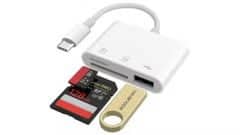
And there’s a slightly alternative hardware option for Lightning-equipped devices. The GeeksChalk guide on how to use a flash drive with iPhone or iPad includes a section on using a USB-A adapter from Apple. This same adapter can be used with SD/microSD memory card readers designed to plug into a USB-A port.
If you use iCloud Photos, make sure the original full-quality images and videos are downloaded to your iPhone or iPad. By default, your iPhone or iPad stores smaller optimized versions of these media, so head to iOS Settings > iCloud > Photos and select Download and Keep Originals.
Note: For photos that have been edited, the unmodified original version will be transferred.
Transfer photos from iPhone to a SD Card
- Insert the memory card into the reader.
- Insert the card reader into the Lightning or USB-C connector on your iPhone.
- Go to the Photos app on your iPhone.
- Select the photos you want to transfer to SD Card.
- Tap the Share button, then tap Export Unmodified Original.
- Tap your SD Card (below Locations), then tap Save.
It’s worth noting that photos in the Hidden album won’t be exported if the album is locked. To unlock the Hidden album, go to Settings > Apps > Photos, then turn off Use Face ID, Use Touch ID, or Use Passcode.