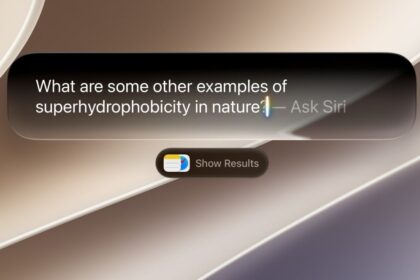


In iOS 27, a new Search and Ask Siri interface replaces the old Spotlight search option, and it’s available from the Dynamic Island. Spotlight and Siri have been unified in the same UI, so you can still quickly launch apps and documents via search in addition to typing questions. Now you have to pull down from the Dynamic Island. Here’s how to access the old Spotlight Search in iOS 27.
Where is Spotlight Search in iOS 27?
If you are looking for the old Spotlight Search in iOS 27, it’s worth noting that Spotlight and Siri have been unified in one UI. This means you can still quickly launch apps and documents via search in addition to asking questions.
Spotlight search is vastly improved thanks to a completely rethought indexing system. Everything stored on your device, from Contacts to Journal entries, is crawled after installing iOS 27.
The process can take up to a week, depending on how much data you have saved locally. The improvements are immediately noticeable because you can actually use Spotlight without waiting for results to populate.
Apple added a new indexing system in iOS 26.6 so people upgrading to iOS 27 in the fall will already have everything done day one.
That’s important because the new Siri AI relies heavily on that newly indexed data. Some queries flat out didn’t work when indexing was still going on, so keep that in mind.
How to Open Spotlight Search in iOS 27
- Invoke the new hybrid Spotlight/Siri AI search UI from anywhere on iOS by swiping down on the Dynamic Island.
- Search for an app name, then hit go.
While the Spotlight interface has integrated Siri AI, they are still distinct entities. If you search for an app name, hit go, and it launches, that’s Spotlight. This is handy if you still want to search your iPhone the old way in iOS 27.
The lack of system-wide access to Spotlight on iOS bothered me for years. Now, search is only a swipe away no matter the app I’m using, and the search box itself is smart enough to understand whether I’m looking for an app to launch or formulating a longer request for Siri AI.
In my use this past week I can say that Apple accomplished its goal. Spotlight is instant.