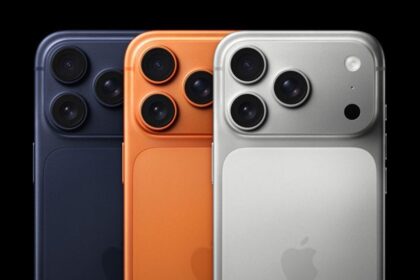

Congratulations — you got a new iPad! Whether it’s the entry-level iPad with the A16 chip that brings the essential features at an affordable price, the iPad Air with the powerful M3 chip, the pocketable iPad mini with the A17 Pro chip or the top-of-the-line iPad Pro with the M5 chip, you’ll want to set up your new device with the least amount of fuss.
We’re here to help you do just that with a ton of little tips and tweaks that will make sure you’re off and using that new iPad as quickly as possible. From backing up your old iPad (if you had one already) to getting up and running with a brand-new iPad from scratch, we’ve got you covered.
Prepare for setup
To make setup as smooth as possible,
have the following items available:
- An internet connection through a Wi-Fi network (you may need the name and password of the network) or cellular data service through a carrier (Wi-Fi Plus Cellular models)
- Your Apple Account and password; if you don’t have an Apple Account, you can create one during setup
- Your credit or debit card account information, if you want to add a card to Apple Pay during setup
- Your previous iPad or a backup of your device, if you’re transferring your data to your new device
- Your Android device, if you’re transferring your Android content
Tip: If you don’t have sufficient storage space to back up your device, iCloud will provide enough storage to complete a temporary backup, free of charge, for up to three weeks from the purchase of your iPad. On your previous device, go to Settings > General > Transfer or Reset [device]. Tap Get Started, then follow the onscreen instructions.
How to set up a new iPad
That first “Hello” screen when you fire up a new iPad is your invitation to turn a shiny piece of hardware into something that actually works for you. Whether you’re migrating settings and apps with Apple’s Quick Start, importing data from Android, activating cellular service, configuring Face ID/Touch ID and security, or organizing your Home Screen and apps just right, the choices you make during setup shape how fluidly your iPad fits into your life.
Our guide cuts through the initial prompts to show you how to get your tablet up and running the right way — fast, secure and personalized.
The best way to set up an iPad is via an older iPad, iPhone or Android device. Apple’s great migration assistant will copy everything over. But sometimes you want to start from scratch. It isn’t much harder — but you need to go through a few extra steps.
How to set up a new iPad
Getting started: Set up an iPad
Your iPad will probably come with enough battery charge to get started out of the box if you’re buying new. Turn it on by pressing and holding the top button until the Apple logo appears.
If you’re jumping ship from an Android phone or tablet, tap Set Up Without Another Device and continue. You’ll have to download the Move to iOS app on your old device. This app will guide you through the process of moving contacts, photos and more to your iPad.
The easiest way to set up a new iPad is to use Apple’s Quick Start feature, which quickly transfers settings and apps from your old device to your new one.
If you’re transferring from another iPhone or iPad, hold both devices next to each other to get signed in and set up. They should automatically detect each other. (If not, make sure your old device is connected to the same Wi-Fi network with Bluetooth turned on.) This is the way we recommend you do it. It’s easy, and fairly fast and painless.
Transfer your apps and data
You have a few different choices for how you want to move your stuff over. If you’ve never owned a smartphone or a tablet before, just tap Don’t Transfer Apps & Data.
If you’re coming from another iPhone or iPad, you can transfer directly from your previous device. This is hands-down the easiest way to move from an old device to a new one. All you have to do is keep your old and new devices close to each other and plugged in to power. All of your apps, photos and data will be transferred from your old device to your new one. Alternatively, you can download from iCloud, which lets your apps and data download in the background so you can start using your new iPad right away.
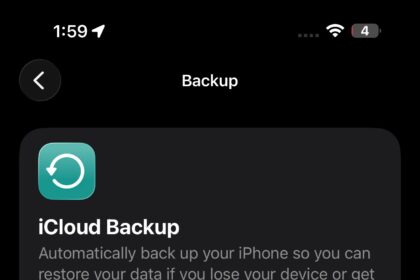
If this is a replacement iPad for one that is no longer of this world, you can tap Restore from iCloud Backup. This option will also set up your new iPad exactly as your old iPad, but you’ll need a reliable internet connection to download everything.
Pick the latest backup you have and wait. Your tablet will download all the essential data to restore it and continue with setup. After you’re done, stay connected — the iPad will continue to download apps, messages and photos in the background.
Set up a new iPad from an Android device
If you have an Android phone or tablet, you can transfer your data with the Move to iOS app when you first set up your new iPad.
Note: If you already completed setup and want to use Move to iOS, you must erase your iPad and start over, or move your data manually.
- On your Android device, download Move to iOS from the Google Play Store. You can also tap the QR code button on your new iPad and scan the QR code using the camera on your Android device to find the app.
- On your iPad, do the following:
- Follow the setup assistant.
- On the Transfer Your Apps & Data screen, tap From Android.
- On the Android phone or tablet, do the following:
- Turn on Wi-Fi.
- Go to the Move to iOS app.
- Follow the onscreen instructions.