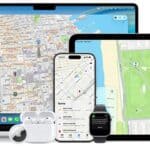

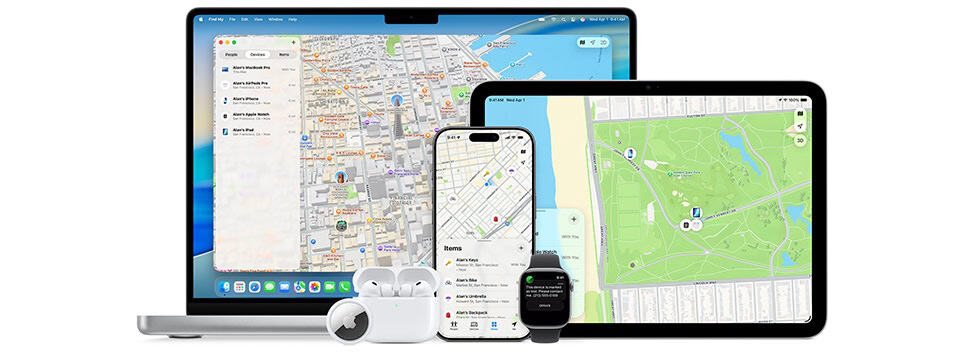

You can track down your AirPods, AirPods Pro, AirPods Max, and Beats audio devices nearly as easily as other hardware. Here’s a rundown on what makes audio devices different than an iPhone, iPad, Mac, or Apple Watch.
Each earbud is tracked separately
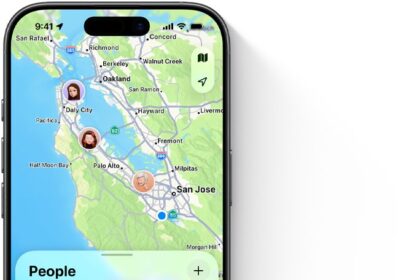
AirPods (3rd generation), AirPods 4 with Active Noise Cancellation, and AirPods Pro (any generation) can be tracked by their left and right earbud. If your earbuds are separated, after a short while, they appear as Left and Right entries in Find My. While you can use Find My on any device to search for them, I found the Mac’s display almost useless; use an iPhone if you can. After selecting the case or left or right earbud, tap Find.
Apple doesn’t provide Precision Finding, but uses relative signal strength to help you get close. You can play a sound on each individually, too, which lets you act like a bat and try to echolocate while using the proximity finder.
Which AirPods can be found how
Audio hardware is all located in the Devices tab or in a Find Devices app. Here’s what and when you’ll view and be able to select:
- AirPods (1st and 2nd generation) offer only in-range Bluetooth tracking with a paired device.
- AirPods (3rd generation), AirPods 4 with Active Noise Cancellation, AirPods Pro (all generations), and AirPods Max offer Bluetooth tracking.
- Several Beats models track via Bluetooth and the Find My network.
Which Beats devices support Find My network? Beats Studio Buds, Beats Flex, Powerbeats, Powerbeats Pro, and Solo Pro.
You can carry out just two actions for all audio devices:
- Play Sound: See how to play a sound on a lost device or AirTag.
- Directions: See how to get directions to a device.
AirPods (3rd generation), AirPods 4 with Active Noise Cancellation, AirPods Pro, and AirPods Max also offer:
- Notifications: See how to get Find My alerts.
- Mark As Lost: See how to mark an iPhone as lost and lock it.
Audio devices that can’t be found except within Bluetooth range show just Play Sound and Directions.
AirPods paired to someone else’s account
Adding Apple and supported Beats audio hardware to Find My happens automatically when you pair the device on an iPhone or iPad with Find My enabled; you can also enable Find My later. There’s no configuration required and no way to exclude audio hardware from this.
However, you may run into trouble in a particular case. Apple lets some AirPods models be shared not just across devices connected to the same Apple Account, but also with additional Apple Accounts. The process is straightforward:
- The first person who pairs AirPods 3, AirPods 4 (ANC), AirPods Pro (all models), or AirPods Max with one of their devices and has Find My enabled is the only person who can see the AirPods, wherever they are.
- Subsequent people pairing one of these devices will be unable to see the location in Find My. As they travel with the audio hardware, Find My will alert them that someone else can see where they are. (See how to check whether someone is tracking you.)
This becomes a problem, as it did for a friend of mine, who bought a perfectly good pair of used AirPods Max headphones and then couldn’t track them and saw the notice he was being tracked.
The solution is simple: In any native Find My app, find the audio device in the Devices view and remove it, as in how Activation Lock works. (You can’t use Settings, System Settings, or iCloud.com to remove one of these audio devices.)
After removing the device, pair it again, following prompts to make it the primary device if asked. After pairing, the original person who used the audio hardware will no longer be able to track the device, and you will see the location of the device in your Find My apps.
It’s unclear under what circumstances you can take over as the primary paired device! Apple doesn’t document this, but it seems to happen when there’s only a single device paired after you remove your device and re-pair it.