



iOS 27’s biggest highlight is Siri AI, but the update also packs new features for apps like Messages, Notes, Wallet, and more. Here’s everything new for Apple’s Photos app in iOS 27.
AI Tools
There is a set of AI photo editing tools in the Photos app, accessible by tapping on the icon featuring three sliders, and then selecting the Apple Intelligence icon labeled “Tools.”
Clean Up
Clean Up uses new AI models, and it’s better at removing objects. The original version of Clean Up was best for small items with little complexity in the surrounding area, but now it is able to do more work reconstructing backgrounds with generative AI.

There are now three options for object removal. Fast works more quickly and can still be used for simple edits, while High Quality works better for more detailed scenes. Auto lets the Photos app decide which option is best.
I’m impressed by the quality of the edits. Earlier versions of Cleanup worked best when removing small objects, but the updated tool can now handle much larger edits without falling apart.
A passerby in a vacation photo, clutter behind a portrait, or an unwanted object in a product image can all affect the final result. Better object removal helps users clean up those images without making the edit obvious.
Improved reconstruction helps Cleanup remove unwanted elements while making edits look more natural.
Extend
One of the best Photos features in iOS 27 is Extend, a new tool that uses Apple Intelligence to expand a photo beyond its original boundaries.
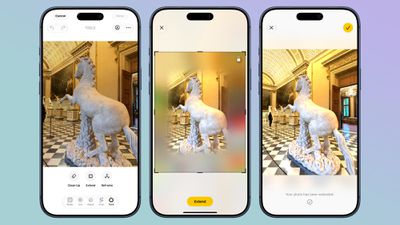
Instead of cropping an image, Extend works in the opposite direction. The feature generates new image content around the existing photo, creating additional space that was never captured by the camera.
Users can expand a vacation photo to include more of a landmark or widen a tightly framed portrait to reveal additional background detail. Extend can also rework older photos to fit wallpapers, social media posts, and widescreen displays.
Results will vary depending on the complexity of the image and the amount of new content the system needs to generate. Even so, Extend directly addresses a common problem for smartphone photographers.
Reframe
iOS 27’s new Reframe tool similarly analyzes the scene and allows you to tweak the angle or composition of your shot. Once set, the AI model will regenerate your image with the updated point of view.

To minimize hallucinations, Reframe limits perspective changes to areas it can comprehend, so you may be locked to a specific direction when reframing a certain image. Additionally, by default, you cannot repeatedly reframe an image in the same direction, but I was able to bypass this limitation by saving reframed photos to Files and then saving them again to the Photos app.
Reframe uses touch and drag gestures to adjust perspective, and two fingers for panning, zooming, or rotating an image to get the right angle.
Image Playground
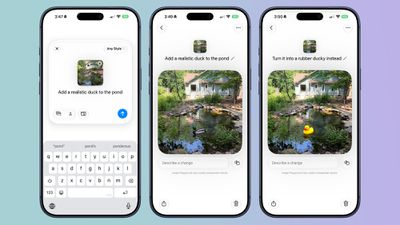
While not part of the Photos app, the Image Playground app can be used to make photorealistic edits to your image. If you have a photo of a friend and want to add a hat or an accessory that looks real, you can do so with Image Playground. You can select specific areas in an image to modify and make AI edits using natural language, plus there’s an option to combine images.
Videos to Photos
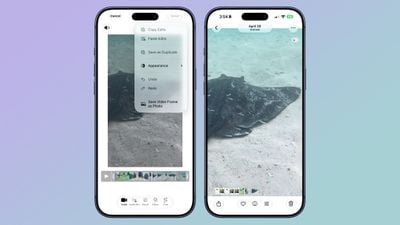
You can now save a frame of a video as an individual photo.
Metadata
Apple now lets you add keywords and star ratings to photos and videos in the Photos app. You can rate images with one to five stars and then filter images by rating.

Album Changes
Apple improved album organization in iOS 27 and added new features for Shared Albums, including an option for Android and Windows users to contribute to iCloud albums.
- Shared Albums can be filtered by photos or videos.
- It’s easier to save images from Shared Albums.
- You can set Shared Albums to expire after 30 days, which is useful for sharing photos without having a permanent album.
- It’s easier to invite people to Shared Albums with a dedicated “Create Shared Album” option in any album menu.
- You can create a link for people to upload images to a Shared Album, and there are new permissions so you can require explicit access to be granted.
- Shared Albums have a recent activity log.
- You can react to images in Shared Albums with any emoji.
Slideshows
In iOS 27, slideshows offer new tools for customization. You can change the transition type, set a custom length for the full slideshow and for each photo, and more.

You can create a slideshow from any album or collection of images in the Photos app instead of being limited to what’s in the Memories section. Just tap into an album, tap the icon in the upper right of the display, and choose “Start Slideshow.” Alternatively, select several photos and then follow the same steps from the main Library interface.
Slideshows can be customized with transition styles, slide duration, and background music. The resulting file can be shared on social media.
Another welcome addition is that Apple now lets you save any slideshow as a video with one tap.
New collections and organization tools
iOS 27 adds two new collections to the Photos app, available under Utilities.
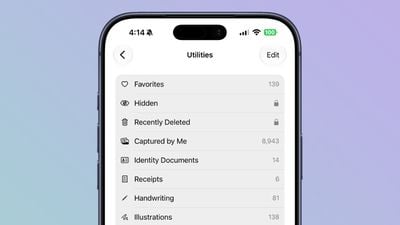
Captured by Me exclusively contains photos taken by you. So it will filter out screenshots, photos you’ve saved from others, and so on.
Identity Documents scans through your Photos library and surfaces images that contain important reference documents, like your driver’s license or passport.
Apple says iOS 27 also adds “Album organization improvements,” but it doesn’t mention specifics.
Another new organization tool in iOS 27 is that you can add keywords to photos. Captions are still available too, but if you scroll up on a photo, near the bottom you’ll find a new ‘Add Keywords’ option.
iCloud
In the Photos section of the Settings app, there’s a “Sync Immediately” option that lets you prioritize immediate iCloud uploads for the day.
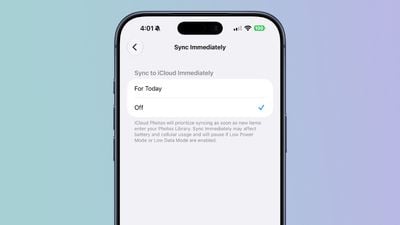
With the setting enabled, iCloud Photos will sync as soon as new images enter the Photos Library instead of holding uploads to save battery.
Full-resolution photos and videos can be added to iCloud Shared Albums, with support for all common photo and video formats.
Other Changes
- You can select a specific pet to use with the Photo Shuffle wallpaper.
- Search returns more pleasing photos of people and pets in Top Results.
- The Collections tab is faster to render.
- New captures from the Camera app load quicker in Photos.
- You can include images of yourself in Photo Shuffle.
- A “Show Selected” option in the Library shows you all of the photos you have checked so you can modify metadata.
Compatibility
The AI photo editing tools are available on devices that support Apple Intelligence, which includes the iPhone 15 Pro and later. Performance and organizational tools are available on devices that run iOS 27, which includes the iPhone 11 and later.
Apple Photos in iOS 27: wrap-up
iOS 27 doesn’t contain any big changes to the design of the Photos app, so if you were hoping to go back to the pre-iOS 18 era, you’ll be disappointed. But the update does offer a variety of exciting new features that make iOS 27 a big year for Apple Photos.
Which new Apple Photos features in iOS 27 are you most excited about? Let us know in the comments.