




Several companies have released Find My items under Apple’s licensing program. Find My technology is embedded into some backpacks, bike components, iPad cases, and bike-mounted alarms, while companies also make AirTag-like trackers and wallet-card-sized trackers.
Third-party Find My items only include Bluetooth. I don’t believe Apple blocks third parties from including NFC or UWB; Apple doesn’t say. It’s more likely too expensive for other firms to build a device that includes two or three forms of wireless.
As a result, third-party items lack Precision Finding via iPhone 11 and later models, and have no tap-for-information option for someone finding an item. Apple also requires a slightly more cumbersome pairing process.
Fortunately, this makes them only a tiny bit less useful and a little bit more cumbersome to use than AirTags.
Pair a third-party item
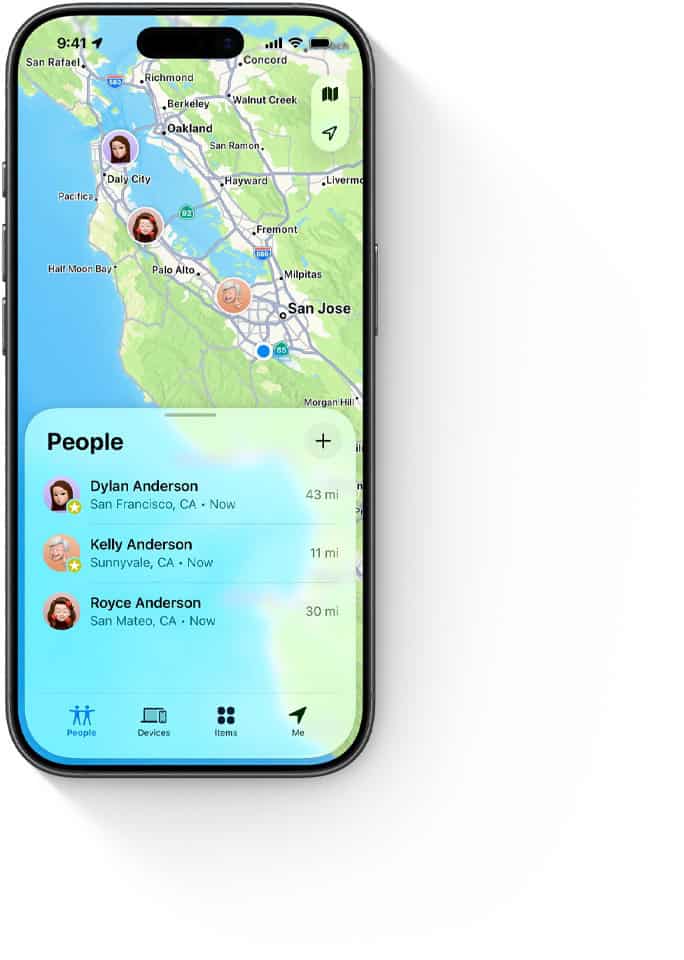
You can pair third-party items only via a native Find My app on an iPhone or iPad, as with AirTags. The instructions are nearly identical to adding an AirTag. Here’s an abbreviated process to add a third-party item:
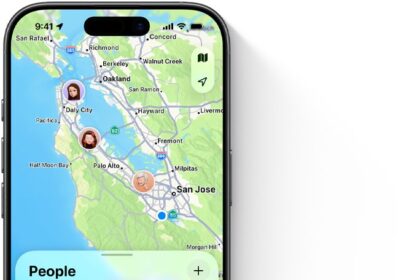
- In the Find My app, swipe up on the People, Devices, or Items tabs, tap the plus button, and tap Other Item.
- Third-party devices mostly have a button you press, so press it. For example, the Chipolo ONE Spot can be squeezed to trigger pairing.
- When the item type appears, tap Connect.
- Name it and tap Continue.
- Choose an emoji and tap Continue.
- Tap Agree to link the device to your Apple Account. The information is identical to that shown for an AirTag.
- Find My displays a summary screen explaining how to use the item in the future. Tap Finish.
Remove and reset one
As with an AirTag, you must first remove a third-party item from Find My to make it possible to pair with another device. Go to the Find My app on an iPhone or iPad, tap the Items button, select the item, tap Remove Item, and tap Remove to confirm.
Failure to unpair makes the Find My item unusable by anyone else. See how to reset an AirTag.
Also, as with an AirTag, if the item is in range of the device removing it, the device sends a reset signal over Bluetooth to the third-party item. If it’s not, however, you have to perform a factory reset.
With a Chipolo ONE Spot, for example, after you hold the item in its center for 30 seconds, it starts to beep at 1-second intervals; release it after the fifth beep. The ONE Spot makes a confirmation sound, after which point it can be freshly paired.
Disable one
Each Find My item from manufacturers besides Apple will have its own procedure for disabling transmission without removing the item from an Apple Account. Many third-party items have an integral battery that can’t be removed. As a result, you usually have to press and hold a button or squeeze a spot on a wallet card for some period of time to disable.
If an unknown tracker is found with you, the process for getting more information links to details from the manufacturer, including how to disable it.