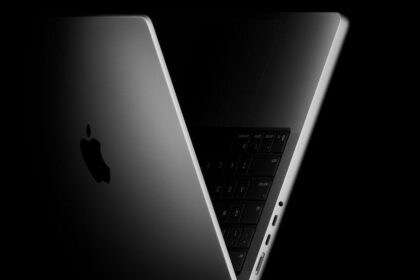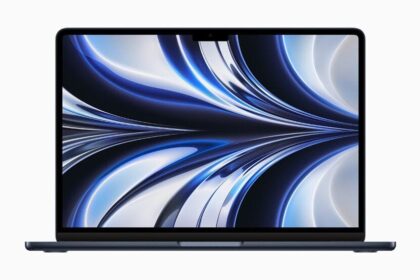


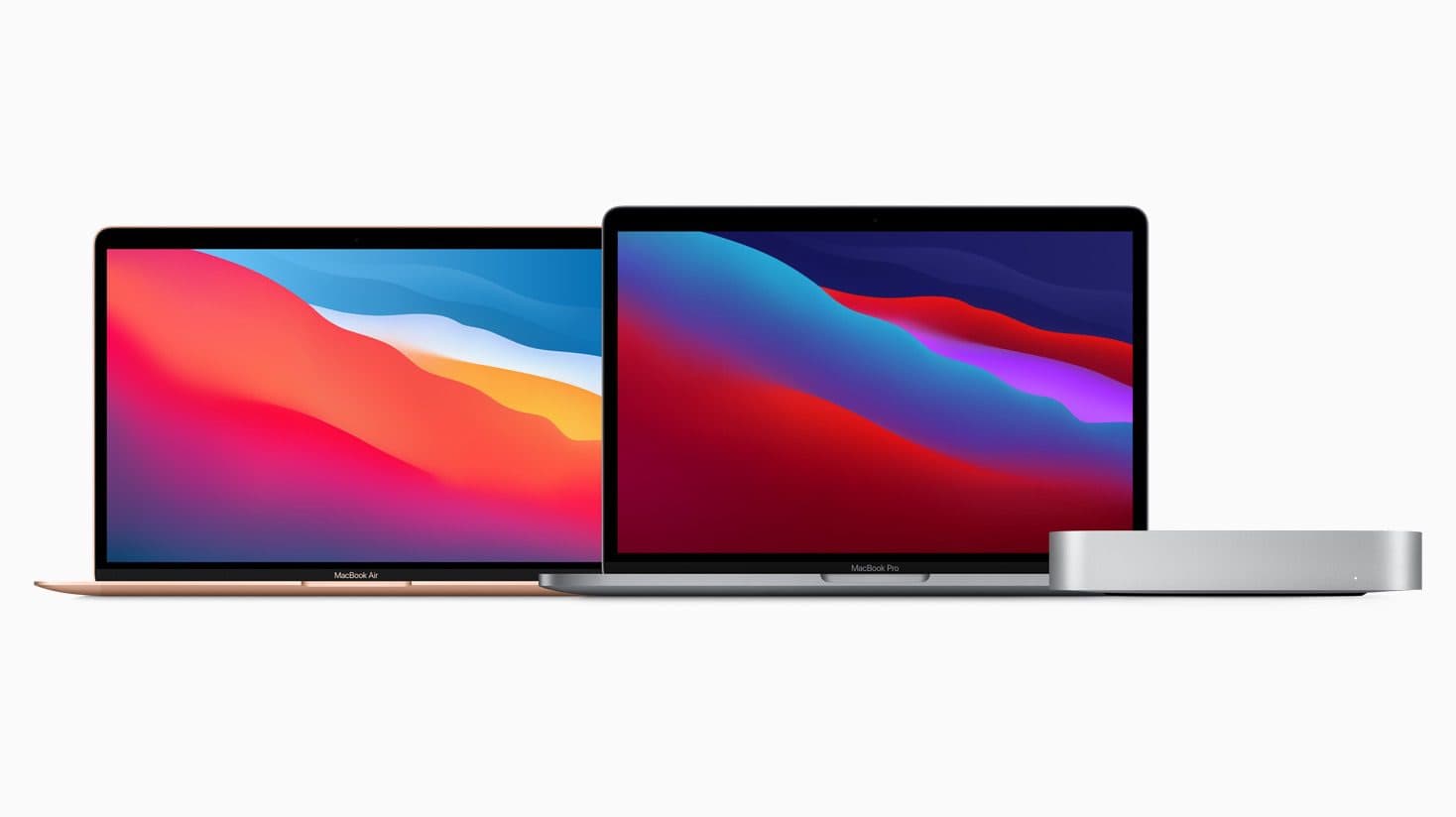

macOS 27 Golden Gate runs on all currently shipping Macs, as well as most models introduced within the past five years or so. Sadly, macOS 27 does drop support for some Mac models that were able to run macOS 26 Tahoe.
Model support
macOS 27 supports all and only Macs with Apple silicon. The full list of supported models is:
- MacBook Neo
- MacBook Air (Apple silicon, 2020 or newer)
- MacBook Pro (Apple silicon, 2020 or newer)
- iMac (2021 or newer)
- Mac mini (2020 or newer)
- Mac Studio
- Mac Pro (2023)
Unfortunately, that excludes the last Intel-based models that were able to run Tahoe but can now go no further: iMac (2020), MacBook Air (Retina, 13-inch, 2020), MacBook Pro (16-inch, 2019; 13-inch, 2020), and Mac Pro (2019).
To confirm which Mac model you have, choose Apple menu > About This Mac. The panel looks different in Monterey or earlier.
If your Mac doesn’t have an Apple M-series or A-series processor, I’m very sorry to say it won’t run macOS 27, regardless of its age or speed.
Even if your Mac is on that list, however, a couple of macOS 27 features may not work because they have more stringent processor requirements. For instance, improved Dictation accuracy and customizing Siri’s expressivity (Apple’s term) and pace require a Mac with an M3 processor or newer and at least 12 GB of RAM.
New Macs that shipped after macOS 27 was released have it preinstalled. If necessary, you can use Migration Assistant to transfer files, accounts, and settings from your old Mac, and there are some additional steps to complete afterward.
Free disk space
The amount of free space macOS 27 requires for installation depends on a number of variables, including which version of macOS you’re upgrading from and which upgrade method you use. I suggest starting with at least 50 GB of free space before downloading the installer, which itself occupies up to about 21 GB. Some macOS 27 features will require increasing amounts of disk space as you use them, so it never hurts to have room to grow.
To find out how much free space a volume has, select the volume’s icon in the Finder and choose File > Get Info. The window that appears lists (among other things) the volume’s Capacity (total), Available (free), and Used space. Those values can sometimes be misleading.
Once you know your Mac qualifies, the next step is preparing it for the upgrade.
You can skip versions
Every now and then I get email from someone who hasn’t upgraded macOS in a few years and wants to know whether they can jump straight from whatever they have to the latest system, or whether they must apply each major upgrade incrementally along the way.
I must admit that my first thought is always, “Why didn’t you install each new version as it was released?” I have always—going back to the pre–Mac OS X days—installed every single update Apple has released, and I’ve never regretted that approach. You can do that too! Not only is it safe, it’s also significantly less hassle than waiting years between upgrades.
Be that as it may, if you are running an older version of macOS and want to install macOS 27, as long as your Mac is compatible, you should just go for it. To be crystal clear, you do not have to install every new release of macOS between the one you have and the one you want! Even if your Mac is currently running, say, macOS 11 Big Sur, you can (and should) skip straight to macOS 27. No need to step through Monterey, Ventura, Sonoma, Sequoia, and Tahoe! The macOS 27 installer doesn’t care where you’re starting. However, the longer the gap, the more likely you will have incompatible third-party software.