



Even though Apple is now working with Google for Siri AI, the company continues to support OpenAI’s ChatGPT—though not via Private Compute Cloud—and Apple seems to be downplaying ChatGPT now. How does that work?
Awkwardly.
The previous integration of ChatGPT was an explicit one—by default, you had to choose to let Siri use ChatGPT, which was also relied on for creating images. If Siri couldn’t answer something and ChatGPT was enabled, it would ask you if you want to consult ChatGPT.
In iOS 27, iPadOS 27, and macOS 27, ChatGPT remains in place, but now only at your request. Siri no longer asks you whether you want to pass a query to ChatGPT; that’s now the job of Siri AI and the expanded PCC.
Because ChatGPT requests don’t use PCC, the privacy of your requests is at high risk compared to Siri AI. However, ChatGPT doesn’t have access to your private data by default; it has context about you only if you sign in to an account. We remain concerned about this.
How ChatGPT handles your data
- If you don’t sign in, then all requests your device sends to ChatGPT are anonymized—they can’t be traced back to you. In addition, OpenAI is prohibited from using your requests to train their models, and your requests are not stored (unless required by law). However, you’ll be limited as to the number and complexity of requests you can make per day.
- If you do sign in, all requests go through your ChatGPT account, so OpenAI knows who’s making them. If you pay for your account, you can effectively remove any daily limit. OpenAI’s privacy policy applies; they will store your requests (which can be useful in providing more context for future requests) and use them for training.
Use ChatGPT alongside Siri AI
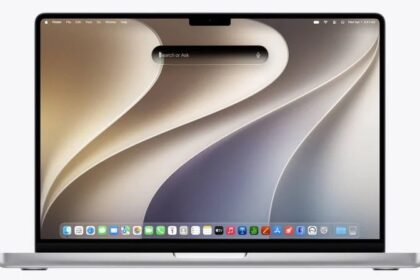
If you want to use ChatGPT with Search or Ask:
- Activate Siri using a method where you can type to it.
- Touch and hold in the Search or Ask field on an iPhone or iPad, or Control-click/right-click that field on a Mac.
- From the menu that appears, choose Ask > Use ChatGPT.
- The text in the field changes to ChatGPT. Enter your query.
When the query is complete, Siri reverts to the default Search or Ask using Siri AI.
You can also explicitly add “ChatGPT” to a request—for example, Ask ChatGPT the best way to fry an egg. This works with spoken requests, too!
To use ChatGPT with Image Playground, choose ChatGPT from the Any Style pop-up menu.
You can opt to disable ChatGPT entirely or make other changes to its settings; see every Siri setting worth changing.