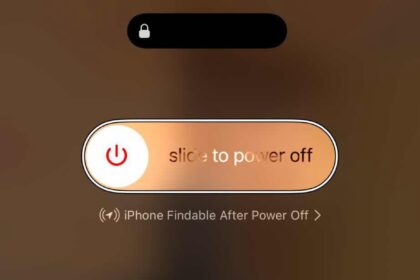








- If you can’t shut down your iPhone using the physical buttons, try using the Settings app, Control Center power button, or asking Siri.
- If your iPhone won’t turn off the usual way, you can force it to restart.
- To force restart your iPhone, press and quickly release the Volume Up followed by the Volume Down button, then hold the Side button until it restarts.
Turn off iPhone
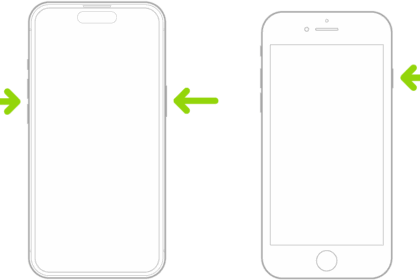
The quickest way to turn off your iPhone is using the physical buttons on your device. Exactly how to do this varies slightly by model, since certain iPhones include different types of buttons:
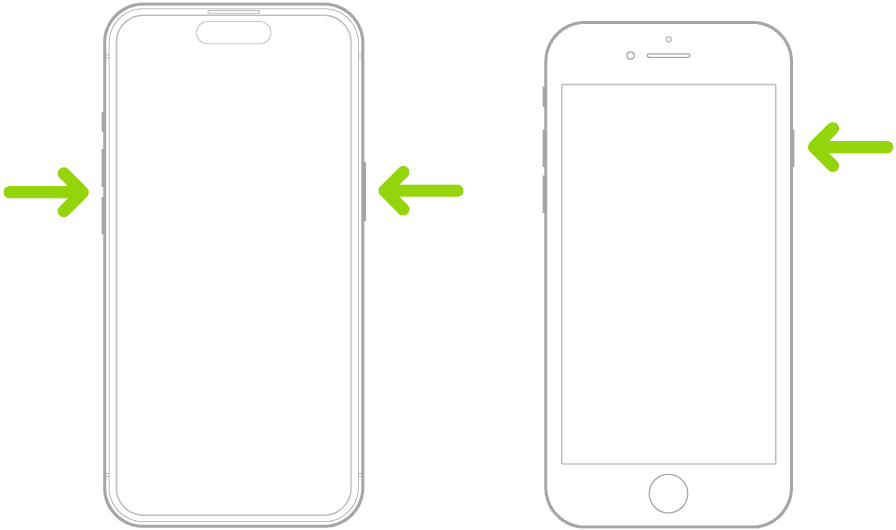
- iPhone model with Face ID: Simultaneously press and hold the side button and either volume button until the sliders appear, then drag the Power Off slider towards the right.
- iPhone model with the Home button: Press and hold the side button, then drag the slider towards the right.
- iPhone model with a Home Button and a Top Button: Press and hold the top button, then drag the slider towards the right.
Another way to shut down your iPhone is via Siri. All you need to do is say, "Hey Siri, turn off my iPhone." Siri should respond with a confirmation, asking, "Just to confirm, you want to power off this device?" Then, responding with "Yes" shuts down your iPhone right away.

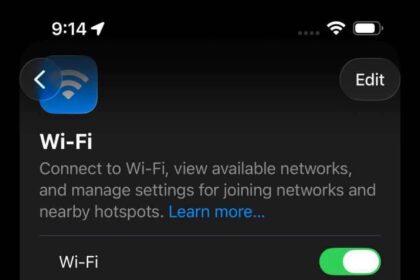
You can also turn off your iPhone using the Settings app. To do so, go to Settings, tap General, scroll down to find Shut Down, then drag the power off slider to complete the process. This method is particularly useful if your physical buttons aren’t working properly.

Another way to shut down your iPhone if your physical buttons aren’t working properly is by using the power off button in control centre. If you have an iPhone X or later, swipe down from the top right corner of the screen to open the Control Center. If you have an iPhone SE, iPhone 8 or earlier, swipe up from the bottom edge of any screen. Press and hold (then release) the power button for a second. Then, you can simply drag the power slider to turn off your iPhone.
How to fix iPhone not turning off issue
But what if your iPhone doesn’t turn off or the device is frozen and won’t respond to screen inputs? That’s when it’s time to force restart your iPhone.
Fix 1: Force restart your iPhone
If iPhone isn’t responding, and you can’t turn it off, try forcing it to restart.
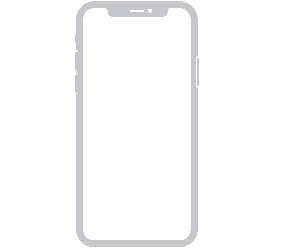
If you have iPhone X or newer
If you have any model in the iPhone X, iPhone XS, iPhone 11, iPhone 12, iPhone 13, iPhone 14, iPhone 15, iPhone 16, iPhone 17 families (including variations like the iPhone 17 Pro, iPhone 17 Pro Max or iPhone 16 Plus), press and quickly release the volume up button, press and quickly release the volume down button, then press and hold the side button until the Apple logo appears.
If you have iPhone 7 or iPhone 7 Plus
On your iPhone 7 or iPhone 7 Plus, press and hold both the side button and the volume down button at the same time until you see the Apple logo (this might take longer than 10 seconds).
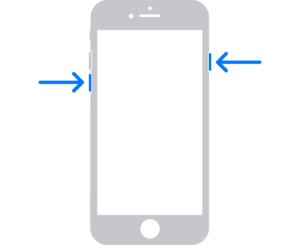
If you have iPhone 6 or earlier
On your iPhone 6s and earlier, press and hold both the Home button and the side button or the top button until you see the Apple logo (this takes around 10 seconds).
Now try turning off your iPhone using any of these methods:
- Simultaneously press and hold the side button and either volume button until the sliders appear, then drag the Power Off slider.
- Go to Settings > General > Shut Down, then drag the slider.
- Swipe down from the top-right of your iPhone and press and hold down on the power button in the top-right of the control center, then drag the slider.
If your iPhone still won’t turn off, use Siri to shut down your device. All you need to do is say, "Hey Siri, turn off my iPhone." Siri should respond with a confirmation, asking, "Just to confirm, you want to power off this device?" Then, replying with yes shuts down your iPhone right away.
Fix 2: Put your iPhone in Recovery Mode
If force restarting didn’t resolve the issue, putting your iPhone in recovery mode lets you update or restore iOS using your computer. The below steps will work with iPhone 8 or later, including iPhone SE (2nd generation and later).
Prepare your computer
Make sure that your Mac is up to date. If you’re using a PC, make sure you have the latest version of the Apple Devices app or iTunes.
Connect your iPhone
Connect your iPhone to your computer with a USB cable, then open the Finder on your Mac, or open the Apple Devices app on your PC. If your PC doesn’t have the Apple Devices app, or your Mac is using macOS Mojave or earlier, open iTunes instead.
Enter Recovery Mode
Keep your iPhone connected and wait until the Connect to computer screen appears. Press and quickly release the volume up button. Press and quickly release the volume down button. Then, press and hold the side button until you see the Connect to computer screen.
Update or Restore your iPhone
Once your iPhone is in recovery mode, select your iPhone from the sidebar in Finder or from the top-left corner in iTunes, then go to the Summary or General tab and click Update or Restore, depending on your needs. Update will install the latest version of iOS without erasing any data. Restore will update iOS while also erasing all the data and resetting your iPhone to factory settings.
Exit Recovery Mode without restoring
If you need to exit recovery mode, but you don’t want to update or restore your iPhone, you should be able to do so by force restarting your iPhone. To do this, disconnect your iPhone from the computer, then quickly press and release the volume up button, then quickly press and release the volume down button, and then press and hold the side button until you see the Apple logo.
And if recovery mode didn’t help solve your software issues, consider using DFU mode with your iPhone instead, which offers a deeper level of software reset for your device.
Fix 3: Put your iPhone in DFU mode
DFU (Device Firmware Update) mode offers a deeper level of software reset than recovery mode. Follow these steps to enter DFU mode on an iPhone 8 or later.
Prepare for DFU mode
Connect your iPhone to your computer with a USB cable and open the Finder on your Mac, or open the Apple Devices app or iTunes on your PC.
Enter DFU mode
Quickly press and release the volume up button, then quickly press and release the volume down button, and then press and hold the side button until the screen goes black. As soon as the screen turns black, press and hold the volume down button while continuing to hold the side button.
Complete the DFU process
After 5 seconds, release the side button while continuing to hold the volume down button until your iPhone shows up in iTunes or Finder. As soon as it appears in iTunes or Finder, release the volume button. Your iPhone is now in DFU mode.
Update or Restore from DFU mode
Once your iPhone is in DFU mode, select your iPhone in Finder or iTunes, go to the Summary or General tab, and click Update or Restore depending on your needs. Update will install the latest version of iOS without erasing any data. Restore will update iOS while also erasing all the data and resetting your iPhone to factory settings.
Exit DFU mode without restoring
If you need to exit DFU mode, but you don’t want to update or restore your iPhone, you should be able to do so by force restarting your iPhone. To do this, disconnect your iPhone from the computer, then do a force restart.
FAQs
Not necessarily, but there is a risk of data loss. In most cases you can enter and exit recovery mode without losing any data. However, if something goes wrong during the process, you may need to fully erase and restore your iPhone to get it working again. It is strongly recommended to back up your iPhone before entering recovery mode.
Yes, a computer is required to use iPhone recovery mode. You need a Mac or Windows PC along with a USB cable to connect your iPhone. On a Mac, you use the Finder app (or iTunes on macOS Mojave and earlier). On a Windows PC, you need the Apple Devices app or iTunes. Recovery mode cannot be entered or used without a connected computer.
Update reinstalls the latest version of iOS on your iPhone without erasing your personal data. Restore also updates iOS but wipes all data and resets the iPhone to factory settings. Use Update first if you want to preserve your content. Choose Restore only if Update does not fix the problem or if you intentionally want to erase the device.
You can exit recovery mode without restoring by force restarting your iPhone. Press and quickly release the volume up button, press and quickly release the volume down button, press and hold the side button.