




- If your iPhone screen is not responding to touch, there are a few things you can try when troubleshooting the problem.
- First, clean off your screen, and your fingers. If you have a case or a thick third party screen protector on the iPhone, remove them.
- Next, try a force-restart. If that doesn’t work, you can update or reinstall the operating system.
- If the iPhone feels hot, let it cool down for 15 to 30 minutes before trying anything else.
- You can also try resetting all settings on the iPhone, which won’t erase your data but can fix software-related touchscreen problems.
- If you’re still having problems, you can always contact Apple support.
The iPhone is one of the best smartphones out there, but even the best smartphones can experience hardware and software glitches from time to time. One common issue is when the iPhone touch screen stops working or becomes unresponsive to touch. It’s obvious when this happens, you’ll touch the screen and nothing happens, swipes will be ignored, taps don’t do anything, and other touch on the screen doesn’t register any behavior. It’s clearly annoying if the iPhone screen is no longer working and not responding to touch, and it’s not subtle. In this article, I will explain why the iPhone screen is not responding to touch and how to fix the problem.
Why is my iPhone screen not responding to touch?
Your iPhone screen may not be responding to touch due to several reasons. Sometimes it’s due to a software bug, crud on the screen, damage to the iPhone touch screen or iPhone itself, or perhaps some other issues as well. Read on to learn more.
An overheating iPhone can also cause the touch screen to stop responding — this is actually more common than most people realize, and it can happen after extended gaming sessions, long stretches of GPS navigation in direct sunlight, or even while wirelessly charging in a warm room. If you’ve recently updated iOS and the touch screen started acting up shortly after, a software bug introduced by the update could be at fault as well. Apple Community forums have been full of reports from users whose touchscreens became unresponsive or erratic right after major iOS updates (iOS 18 in particular was a repeat offender), so you’re definitely not alone if that’s what happened to you.
We’ve got several steps to troubleshooting an unresponsive touch screen on an iPhone. If your iPhone is not responding well to touch and the screen seemingly is not working as well as it should with touch input, follow along and you should be able to fix the issue for good. I just experienced this problem on my iPhone, so this is the set of steps I used to troubleshoot the issue, for my specific situation the iPhone just needed to be hard rebooted and some storage freed up for the touch screen to work as expected again.
How to Fix an Unresponsive iPhone Screen
Try these troubleshooting tips one by one. Hopefully, one of these will resolve the issue. If not, it’s likely you have a hardware problem that may only be fixable by contacting Apple customer service to repair or replace your phone.
Clean Your Screen, And Your Fingers
The first thing you need to do when your iPhone screen is not responding to touch is to clean off your screen, and your fingers. If you have a case or a thick third party screen protector on the iPhone, you’ll want to remove those as you troubleshoot this as well.
Give your iPhone screen a good look in bright direct lighting and tilt it around a bit to reveal any obvious gunk, oil, residues, liquids, moistures, dried crust or food, or anything else that may be interfering in the screen. In the sunnier weather, sunscreen is another common thing that can get on a screen and make the iPhone touch screen unresponsive or erroneously responsive. You’ll want to make sure the iPhone screen is clean and clear of anything that can interfere with the ability to detect touch properly. Wiping it down with a soft cotton cloth is often sufficient to remove anything from the iPhone displays touch screen, but you may need to use a slightly damp (and I do mean slightly, never enough moisture to drip) cloth to wipe the screen free.
As for your fingers, just make sure they’re clean and dry. Wash your hands or your fingers if in doubt and if you have a bunch of gunk on them. Unusually dry skin or callouses generally don’t matter and should not cause any issue with the touch screen, though if your hands are wet that may cause issues.
Just make sure the screen is clean, and that your hands are clean and dry.
Force your iPhone to restart
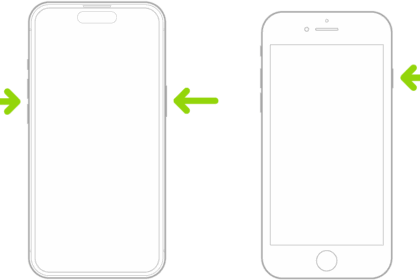
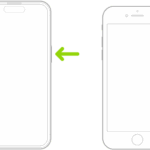
Often times simply restarting the iPhone will fix the unresponsive touch screen. Unfortunately, if your iPhone screen is not responding to touch at all, you won’t be able to move the power-off slider to shut down your device. In this case, you’ll need to resort to a forced restart, which is basically like rebooting your iPhone without powering it down first.
When your iPhone boots back up, the touch screen should work just fine again if it’s a simple software issue like a bug or a software freeze with iOS or an app. The exact steps to force restart your iPhone will depend on what model you have.
Quick tip: The button we call the Power button is also sometimes called the Lock button or the Side button.
If you have an iPhone 8, iPhone SE (2nd and 3rd generations), iPhone X, iPhone 11, iPhone 12, iPhone 13, iPhone 14, iPhone 15, iPhone 16, iPhone 17, or iPhone Air
- Press and release the Volume Up button.
- Press and release the Volume Down button.
- Press and hold the Side button (the Sleep button).
- Wait until you see the Apple logo, and then release the button.
If you have an iPhone 7
- Press and hold the Volume Down and Side (Sleep) buttons at the same time.
- Hold the buttons until the Apple logo appears, then release the buttons.
If you have an iPhone 6s, iPhone SE (1st generation), or earlier
- Press and hold the Home and Side (Sleep) buttons at the same time.
- Hold the buttons until the Apple logo appears, then release the buttons.
Disconnect any accessories from the Charging Port
On rare occasions, an accessory plugged into the phone’s charging port could interfere with the touchscreen. If anything is plugged into the port — including a microphone, power bank or charger — unplug it. If that solves your problem, the accessory or cable might be incompatible with your iPhone.
If you notice the touchscreen only acts up while the iPhone is plugged in and charging, the charger itself could be the problem. Non-certified third-party chargers can interfere with the screen’s touch sensitivity, and I’ve seen this happen more than once with cheap gas station cables. Try a different charger — ideally the one that came with the iPhone or an Apple-certified cable — and see if the issue goes away.
Let Your iPhone Cool Down
If your iPhone feels warm or hot to the touch, turn it off and let it sit for 15 to 30 minutes before trying to use the touchscreen again. Apple rates iPhones to work between 32°F and 95°F (0°C and 35°C), and when the internal temperature climbs too high, the touchscreen can stop responding entirely.
This can happen after extended use of GPS navigation in direct sunlight, long gaming sessions, or even wireless charging in a hot room — and sometimes the phone doesn’t even feel that hot on the outside when the internals are already struggling. If you have a thick case on the iPhone, take it off while the phone cools down, since cases trap heat. Don’t stick your iPhone in the fridge or hold it up to an air conditioner to speed things up (which is a lot more tempting than it should be), because the sudden temperature change can cause condensation inside the device and create a whole different set of problems.
Delete and Update / Reinstall the Problematic App
Sometimes an iPhone touch screen is unresponsive in just one particular app. If this is the case, the problem is likely that app and not the iPhone touch screen at all, but since the app is open at the time the app stops responding as it “freezes”. A frozen app will often not respond to any touch screen input at all, but swiping up from the bottom of the screen will often exit the app and go back to the Home Screen in these scenarios.
If your iPhone touch screen stops working while using a specific app, you’ll want to update it first. Open the App Store, tap your profile in the top-right and check to see if an update is available for the app in question, if an update is available, tap the Update button next to the app in question.

If there is still a problem with the touch screen not working in a specific app after you have updated that app, you can also delete the app, and then reinstall the problematic app. Relaunch it again to see if it works as expected. If it still fails, the app could have a bug that needs to be addressed. If the touch screen works with every other app except for the problematic one, that particular app is likely the problem and it’s probably nothing to do with the screen or iPhone at all.
One thing worth knowing: some video playback apps (like certain streaming players) have a screen lock feature that’s designed to prevent accidental touches during playback. If you’re watching a video and the screen stops responding, look for a small lock icon on the screen before assuming the touchscreen itself is broken — tapping that icon should unlock the screen controls.
Free up iOS Storage
Make sure your iPhone has enough storage available. You can check this by going to Settings > General > iPhone Storage. Aim to have at least a 1GB, as iOS really starts underperforming with less space available.
When an iPhone has zero storage available, the device tend to misbehave, and that can include experiencing an unresponsive touch screen.
Deleting unused apps is an easy way to recover some storage space.
I have noticed this is particularly true with modern versions of iOS when an iPhone is totally full and has 0 bytes of storage remaining, in which case many apps become unresponsive as does the touch screen. Sometimes even the buttons along with the touch screen may be unresponsive and not work at all for a while on a totally full iPhone, until whatever software cache clearing mechanisms complete. This is often easily reproducible too; just fill up an iPhone so that it has zero bytes remaining, and then start trying to use apps that rely on a lot of caching like Instagram, X, Facebook, Spotify, etc, once those app caches build up you will likely notice the touch screen becomes unresponsive for short periods of time as iOS struggles to deal with having zero storage available. In such a case, just free up some space, then reboot the iPhone, it should work again.
Check for a Software Update
If your iPhone touchscreen is working well enough that you can get into Settings, go to Settings > General > Software Update and install any update that’s available. Apple regularly releases iOS updates that fix bugs affecting touchscreen performance, and there have been several iOS versions over the years where a touchscreen bug was introduced and then patched in a follow-up update.
If the screen is too unresponsive to get through Settings, skip this step for now — the “Reinstall iOS” step further down covers how to update from a computer using Recovery Mode instead. But if you can get into Settings even intermittently (and some touchscreen issues do come and go), it’s worth trying the over-the-air update first since it’s much less disruptive than connecting to a computer and going through Recovery Mode.
Reset All Settings
Go to Settings > General > Transfer or Reset iPhone, then tap Reset and choose Reset All Settings. This resets all of your system settings — Wi-Fi passwords, Bluetooth connections, display brightness preferences, notification settings — back to their factory defaults, but it does not erase any of your apps, photos, messages, or other data.
Sometimes a corrupted system setting or a bad configuration left over from an iOS update can interfere with the touchscreen, and resetting all settings clears that out without the hassle of wiping the entire phone. You’ll have to re-enter your Wi-Fi password and reconnect your Bluetooth devices afterward, which is a bit of a pain, but it’s a lot less disruptive than a full restore. If you can’t get into Settings at all because the touch screen is completely unresponsive, skip this step and move on to reinstalling iOS via your computer.
Reinstall iOS
As a last resort before contacting Apple Support, you can try updating or restoring iOS. This is a good option if your iPhone successfully restarts but can’t get past the Apple logo.
Even if your iPhone screen is not responding to touch, you can update or restore iOS by connecting your device to your computer and using Recovery Mode:
- Connect your iPhone to your computer with a USB cable.
- Open the Finder on your Mac, or open the Apple Devices app on your PC. If your PC doesn’t have the Apple Devices app, or your Mac is using macOS Mojave or earlier, open iTunes instead.
- Put your iPhone in recovery mode following these steps:
- iPhone 8 or later, including iPhone SE (2nd generation and later): Press and release the volume up button, press and release the volume down button, then press and hold the side button. Hold down the side button until you see the Connect to computer screen.
- iPhone 7 or iPhone 7 Plus: Press and hold the volume down button and Sleep/Wake button at the same time. Hold down the buttons until you see the Connect to computer screen.
- iPhone 6s or earlier, including iPhone SE (1st generation): Press and hold the Sleep/Wake button and Home button at the same time. Hold down the buttons until you see the Connect to computer screen.
- When you see the option to restore or update your iPhone on your computer, choose Update. iTunes or Finder will update the phone without deleting your apps and data. Do not choose Restore, which will erase all of your data.
- If the Update doesn’t work, your final option is to choose Restore. This option will restore your iPhone to its factory settings.
Important: If you choose Restore, iOS will be reinstalled and all of your data will be erased. You will, however, have an opportunity to restore a backup from iCloud. For this reason, it’s important to back up your data.
If your screen is completely unresponsive but the iPhone is otherwise working (you can hear sounds, receive calls, etc.), you may still be able to back up your data before restoring. Connect the iPhone to a Mac or PC with a USB cable, open Finder or the Apple Devices app, and look for the option to back up. If the iPhone has been connected to that computer before and already trusts it, the backup should start without needing you to tap anything on the screen.
Is the iPhone Touch Screen Cracked? Is the iPhone Touch Screen Damaged? Was the iPhone damaged or dropped?
This is probably obvious from the get-go, but if the iPhone touch screen is cracked it can become unresponsive, partially unresponsive, or just not work at all. Likewise if the iPhone is damaged, it may not work at all, or the touch screen may not work reliably.
Water damage can also ruin an iPhone touch screen, or the entire phone as well. If an iPhone has been dropped, it’s also possible that internal components came loose, which may cause the touch screen to not be working.
If your iPhone has obvious visible damage and the iPhone touch screen is not working, the damage is likely to be the cause. In such a situation, take the iPhone to an authorized Apple repair center or an Apple store and have them give it a look.
If you’ve had your iPhone screen replaced by a third-party repair shop in the past, that could be causing the problem too. Non-genuine replacement screens vary a lot in quality, and touchscreen issues are one of the most common complaints with cheap aftermarket parts. The screen might work fine for weeks or months and then start losing touch sensitivity or developing dead zones. If that sounds like your situation, you may need to have the screen replaced again with a higher-quality part — or take it to Apple or an Apple Authorized Service Provider for an OEM display.
See also: Apps Not Downloading on iPhone? Here’s The Fix (11 Ways)
iPhone touch screen STILL not working? Contact Professional Help
If all above troubleshooting methods have failed, it’s time to contact Apple support, go to an Apple Store, or visit an Apple authorized repair center. Have them inspect your iPhone touch screen to figure out what’s wrong with it, it may need a repair. It may be a hardware problem that is unseen, or it could be some other issue that you overlooked.
When you go in for service, Apple can run a full diagnostic on the iPhone to check for hardware faults that you’d have no way of detecting at home — things like a failing digitizer, a loose internal display cable, or damage to the logic board. If your iPhone is still under warranty or covered by AppleCare+, the repair may be covered at no cost or for a reduced service fee. Bring your proof of purchase if you have it, and make sure to mention every troubleshooting step you’ve already tried so they don’t waste your time repeating the same fixes.
–
Did these troubleshooting tips fix your iPhone touch screen issue? Do you have any tips or tricks to resolving problems with an unresponsive or non-working touch screen on iPhone? Let us know in the comments below.
Frequently Asked Questions About iPhone Screen Not Responding to Touch
A few different things can cause an unresponsive iPhone touch screen. Software bugs or a frozen app in iOS are among the most common culprits, and a force restart usually clears those up. Dirt, oil, moisture, or sunscreen residue on the screen can also interfere with the touch sensor's ability to register your finger. A thick or poorly applied screen protector is another frequent cause, along with accessories plugged into the charging port that occasionally conflict with touchscreen input. If your iPhone is almost out of storage — especially at or near zero bytes free — iOS can struggle to keep up and the screen may stop responding entirely. Physical damage like a cracked display, water exposure, or internal components knocked loose from a drop can also be to blame.
It can, especially if the protector is too thick, poorly aligned, or has trapped air bubbles or dust underneath it. Debris caught between the protector and the display interferes with how the screen detects your touch, and a low-quality protector may not conduct your finger's input well at all. If your iPhone screen isn't responding, remove the protector and clean the display with a soft cloth. Should touch come back immediately, the protector was the problem — try reapplying it more carefully or switching to a thinner one from a reputable brand.
When the screen goes unresponsive inside a single app but works fine everywhere else, the app itself has frozen rather than your touch screen. You can usually escape a frozen app by swiping up from the bottom of the screen to get back to the Home Screen. From there, open the App Store, tap your profile icon in the top-right corner, and check whether an update is available for that app. If updating doesn't fix it, delete the app and reinstall it. If the same app keeps freezing after a fresh install, the app likely has a bug that the developer needs to patch.
Yes, and it's more common than most people realize. When your iPhone's storage drops to near zero, iOS can't manage its own caches and background processes properly, and that can make the touch screen unresponsive for stretches at a time. Apps that rely on heavy caching — like Instagram, Spotify, and Facebook — tend to trigger this faster. You can check your available space in Settings > General > iPhone Storage and aim to keep at least 1 GB free. Deleting unused apps is the quickest way to reclaim space, and a reboot after freeing up storage usually gets the touch screen working again.
You'll need a computer and a USB cable since you won't be able to tap anything on the phone. Connect your iPhone to a Mac and open Finder, or connect to a PC and open the Apple Devices app (use iTunes if your Mac runs macOS Mojave or earlier). Then put your iPhone into recovery mode — on an iPhone 8 or later, press and release Volume Up, press and release Volume Down, then hold the Side button until you see the Connect to computer screen. Your computer will offer two options: choose Update first, which reinstalls iOS without erasing your apps or data. Only choose Restore if the update fails, since restoring wipes everything and returns the iPhone to factory settings.