



Since you need a network connection to make the most of your iPhone, it’s frustrating when your device won’t connect to Wi-Fi. You’ll instead have to use your data plan, which might be limited.
Let’s walk through the steps to fix the problem when your iPhone isn’t connecting to Wi-Fi. If your iPhone cellular data is not working, we have a separate troubleshooting guide that you may want to check out.
How to Fix an iPhone Not Connecting to Wi-Fi
1. Check the Wi-Fi Menu on Your iPhone
Open the Settings app on your iPhone and check whether the Wi-Fi network you want to connect to is within range and already connected.
Tap to go back to the main Settings page, then take a look at the Airplane Mode slider. Having airplane mode enabled turns off all wireless communication, so your iPhone won’t connect to Wi-Fi properly when it’s on.
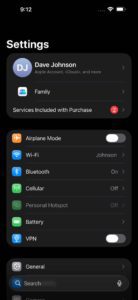
Because of this, toggling airplane mode on and back off can be a useful troubleshooting step when your iPhone won’t connect to Wi-Fi. Try this before proceeding, and make sure airplane mode is off going forward.
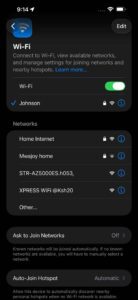
Next, tap the Wi-Fi entry in Settings. Make sure the Wi-Fi slider at the top is green, which means the feature is enabled. Below this, when everything is working, you’ll see the name of your network with a checkmark next to it, showing that you’re connected.
If this doesn’t appear, tap the name of the network you want to connect to in the Other Networks list below to connect to it. If you don’t see the network here, make sure that you are within range of the Wi-Fi network.
The exact distance that Wi-Fi covers will vary based on your equipment, but you should be as close to your router as possible to ensure a strong signal. If you know you’re close and still don’t see your Wi-Fi network, or it doesn’t connect when you tap it, you’ll need to continue to additional troubleshooting.
2. Reboot Your iPhone and Wi-Fi Router
Restart your iPhone, as well as your Wi-Fi router, to get rid of any simple issues before you continue. To reboot your iPhone, go to Settings ⇒ General ⇒ Shut Down, then drag the power slider.

If your Wi-Fi router has a physical power button, power it off, wait about a minute, then power it back on. If your Wi-Fi router doesn’t have a power button, unplug the power cord from the power outlet, wait about a minute, then plug it back in.
Once the Wi-Fi router has rebooted, go back to Settings ⇒ Wi-Fi and tap your network name again. In case it doesn’t connect, we’ll walk you through the next steps.
If you still don’t see the name of your network on the menu, and it’s your home network, make sure that your network isn’t hidden. Also, confirm all your equipment is plugged in and the lights on your modem and router aren’t flashing red or similar. If you’re trying to connect to a public network that won’t appear, speak to its administrator.
3. Forget and Add the Network Again
If hitting the network name on the Wi-Fi menu doesn’t connect properly, tap the blue i icon next to your network’s name. On the resulting menu, tap Forget This Network, then hit Forget to confirm. This will clear the saved Wi-Fi password and require you to manually add it again.
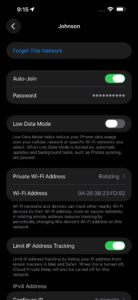
Back on the Wi-Fi screen, select your network and type in its password. Your iPhone should connect to Wi-Fi with the correct password. But if the password doesn’t work, whoever administers the network might have recently changed it.
For networks where you’re in charge, you can log into your router to view the password and change it, if needed. For networks that aren’t your own, you’ll need to ask the owner to confirm the password. Make sure that you type the password carefully, and don’t confuse characters like “1” and “l”.
In case this step solved your issue, it’s a good idea to enable the Auto-Join slider on the network’s options page. With this on, your iPhone will automatically connect to your Wi-Fi network when within range.
4. Look for a Login Page (for Public Wi-Fi)
Open Safari or another browser and try to visit any website after connecting to a public network. You should be brought to a sign-in page where you’ll need to tap a button to confirm that you agree to the network’s terms of service.
Many of these steps assume that your iPhone won’t connect to Wi-Fi at home. But when you’re trying to get online on a public network, like those at an airport or hotel, there’s often an extra step you have to complete before you can get online.
After you do this, the Wi-Fi network should work properly, though keep in mind that some functions, like games and media streaming, may still be blocked on that network.
5. Check Your Wi-Fi Network for Issues
Even once your iPhone is connected to Wi-Fi, you might still have issues with the network not letting you get online. In Settings ⇒ Wi-Fi, you’ll see a message like “No Internet Connection” underneath your network name when there’s an issue. Tap the network to see more details about the problem.
If an error appears here, it almost certainly affects your whole network, so other devices won’t be able to get online either. Try getting online with another device, like an Android phone or a laptop, to confirm this.
6. Update All Devices
Update your iPhone by going to Settings ⇒ General ⇒ Software Update. While a software update isn’t likely to fix iPhone Wi-Fi issues, it’s worth a try if you’ve reached this point.
Then, update your router. The instructions for doing this vary by device, so try a Google search for your model, or consulting the manual, for help.
7. Try Connecting to Another Wi-Fi Network and Reset Network Settings
Try connecting your iPhone to a different Wi-Fi network to determine where the problem lies. If you’re able to connect successfully at a friend’s house or a coffee shop, then the problem is with your home network. But if your iPhone won’t connect to Wi-Fi anywhere, then something on your device is the problem.
In this case, go to Settings ⇒ General ⇒ Transfer or Reset iPhone ⇒ Reset ⇒ Reset Network Settings. This will set everything network-related on your iPhone, including Wi-Fi, Bluetooth, and any VPNs, back to their default options. It’s a bit of a pain to set everything back up, but it’s the final troubleshooting step to weed out strange problems on your device.
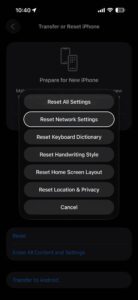
If your iPhone still won’t connect to any Wi-Fi networks after resetting network settings, you should contact Apple Support. Your device likely has a hardware problem.
iPhone Won’t Connect to Wi-Fi? Now You Know the Fix
You don’t have to stress when your iPhone isn’t connecting to Wi-Fi. The problem usually lies with a simple mistake or is network-wide, so there’s probably nothing wrong with your iPhone. By following these simple steps, you can get your device back on Wi-Fi and online again.
There are ways to improve the Wi-Fi performance of your iPhone too, in case you find that it’s not suitable once your device connects.
Frequently Asked Questions About iPhone Not Connecting to Wi-Fi
The most common cause is that your iPhone's Wi-Fi is turned off or Airplane Mode is enabled, both of which cut off wireless connections. Beyond that, you may be too far from the router for a stable signal, or your saved password may no longer match the one the network is using. A router-side problem — like a firmware glitch or an internet outage from your provider — can also prevent your iPhone from getting online, even when it appears connected. Less frequently, corrupted network settings on the iPhone itself can block connections, which is why a network settings reset is a common last-resort fix.
This message means your iPhone has successfully joined the Wi-Fi network, but the network itself isn't providing internet access. The issue almost always affects every device on the network, not just your iPhone — try loading a webpage on a laptop or another phone to confirm. If nothing on the network can get online, the problem is with your router or internet service provider rather than your iPhone.
No — resetting network settings on your iPhone won't delete your photos, apps, messages, or any personal files. It does erase all saved Wi-Fi networks and passwords, paired Bluetooth devices, and VPN configurations, returning everything network-related to its factory defaults. You'll need to reconnect to every Wi-Fi network and re-pair your Bluetooth accessories afterward, so make sure you have your Wi-Fi passwords handy before you start.
In many cases the password genuinely changed — someone with access to the router may have updated it without telling you. If you're certain the password is right, double-check for easy-to-miss typos like a lowercase "L" versus the number "1," since Wi-Fi passwords are case-sensitive. Forgetting the network in Settings > Wi-Fi by tapping the blue i icon next to the network name, then tapping Forget This Network and reconnecting with the password from scratch, clears the old saved credentials and often fixes the problem.
Try connecting your iPhone to a different Wi-Fi network — a friend's house or a coffee shop works well. If it connects without trouble, the problem is with your home network or router rather than your iPhone. You can also test in the other direction: connect a laptop or another phone to your home Wi-Fi. If that device can't get online either, the router or your internet service is the culprit. If your iPhone won't connect to any Wi-Fi network at all, something on the device itself needs attention — resetting network settings or contacting Apple Support are the next steps.