







In this guide, you will learn how to use an iPhone running iOS 26 step-by-step. You start by identifying the controls on your iPhone and their functions, learning how to turn your iPhone on and off, lock and unlock your iPhone, key touchscreen gestures, from tapping, double-tapping, and triple-tapping through to swiping, sliding, and pinching or spreading. Next, you explore multitasking, and switching apps, before moving on to navigating the Home screen pages and organizing the icons and widgets they contain. After that, it’s time to search your phone, use notifications, and make the most of today view. Finally, you learn additional features for managing your device.
Using Your iPhone Controls
On every iPhone, you take most actions via the touchscreen, the main hardware control. iPhones have several other hardware controls, such as the Side button on the right side and the Volume Up button and Volume Down button on the left side. Newer iPhone models (iPhone 15 and later) include a dedicated Action Button on the left side. Many iPhone models use Face ID to authenticate the user, while some older iPhone models use Touch ID.
Identify the Controls on The Side of Your iPhone
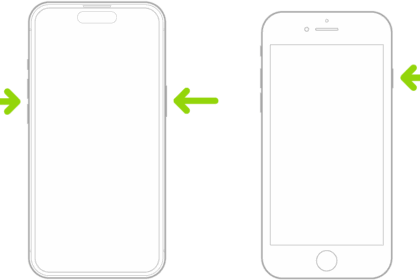
Near the top of the right side of your iPhone is a button called the Side button. This button enables you to take several actions, including powering on your iPhone; putting it to sleep and waking it; and summoning Siri, the virtual assistant. You can use the Side button in combination with the Volume Up button and the Volume Down button to perform other tasks like powering off your iPhone. Some newer iPhone models have a Camera Control on the right side, a dedicated control for activating the Camera app, taking photos and videos, and adjusting camera settings.
The left side of your iPhone has several controls:
- On iPhone 15 and later models, near the top of the left side is a button called the Action Button. You can customize it in the Settings app to take your preferred action, such as recording a voice memo or turning on the flashlight. The action button’s default action is to toggle between ring mode and silent mode; long-press the action button until you feel haptic feedback confirming the mode change. On older iPhone models, there is a physical ring/silent switch instead.
- Below the Action Button or ring/silent switch are the Volume up/down buttons. The Volume Up button and Volume Down button enable you to control the volume quickly without having to use the touchscreen. The upper button increases the volume; the lower one decreases it. You use the volume buttons to raise or lower the loudness of the ringer, alerts, sound effects, songs, and movies. During phone calls, the buttons adjust the voice loudness of the person you’re speaking with, regardless of whether you’re listening through the receiver, the speakerphone, or a headset. These buttons also work in combination with the Side button for other actions.
Turn Your iPhone On and Off
To turn on your iPhone when it is powered off, press and hold the Side button until the Apple logo appears on-screen; then release the Side button. Your iPhone continues to start, and then the lock screen appears.
To turn off your iPhone, press the Volume Up button once, press the Volume Down button once, and then press and hold the Side button until the Power Off screen appears; then drag the slide to power off slider to the right.
Unlock and Lock Your iPhone
If your iPhone has Face ID (available on iPhone X and later), hold the iPhone so the front cameras can scan your face. The iPhone unlocks and the "Swipe up to open" prompt appears at the bottom of the screen. Swipe up from the bottom of the screen. The iPhone unlocks, and you can start using it.
If your iPhone has Touch ID (iPhone SE models and earlier iPhones with a Home button), place your finger on the Home button or the Touch ID sensor. The iPhone unlocks, and you can start using it.
To lock your iPhone and put it to sleep, press the Side button once. Depending on how the iPhone is configured, the iPhone may also go to sleep automatically after a period of inactivity.
Using Sleep and Wake, Siri, App Store, and Apple Pay
When your iPhone is awake, press the Side button once to put it to sleep. When your iPhone is asleep, press the Side button once to wake it.
On your iPhone, press and hold the Side button at any time to activate Siri, the virtual assistant. Your iPhone plays a tone and displays a lighting effect around the screen’s edges.
When making a purchase or installing an app from the App Store on your iPhone, double-click the Side button to authenticate yourself via Face ID (or Touch ID on supported models) and confirm the purchase or continue installing the app.
Tapping, Swiping, Dragging, and More
To control your iPhone, you gesture with your fingers and (sometimes) thumbs on the touchscreen. The following list explains the eight main gestures:
- Tap: You tap the screen, placing your finger on it briefly and then lifting your finger again, to select items or to give commands. For example, you tap an app’s icon on one of the Home screen pages to open that app. Similarly, you tap to start playing a song in the Music app, and you tap to open a photo album in the Photos app.
- Double-tap: You tap the screen twice in rapid succession to take actions such as zooming in and out on web pages, maps, and email messages.
- Triple-tap: You tap the screen three times in rapid succession to give special commands, such as enabling the Zoom feature, which lets you zoom the whole screen rather than zoom in individual apps.
- Flick: You flick your finger across the screen to scroll quickly through lists of songs, emails, and picture thumbnails. To flick, place your finger on the screen and then move it rapidly in the direction you want the content to move. For example, flick up a list of songs to move the list up so that you can see later items. You can either wait for the list to stop scrolling or tap to stop the scrolling.
- Pinch and spread: On a web page or picture, pinch your fingers together to shrink the image, or spread your fingers apart to enlarge the image. Pinching and spreading (sometimes called unpinching or pinching apart) are easy and effective gestures.
- Drag: Place your finger on the touchscreen and then, without lifting your finger, move it. You might drag to move around a map that’s too large for the iPhone’s display area.
- Swipe: Swiping is like a more controlled version of flicking; you place your finger on the screen and move it quickly but not extravagantly. For example, you can swipe left on the first Home screen page to display the second Home screen page.
- Slide: Sliding is a move you use with the onscreen keyboard’s QuickPath feature, which lets you enter a word by placing your finger on the first letter and then sliding your finger to each other letter in turn without lifting it from the screen. When you finish the word, or when the Predictive feature guesses it correctly, you lift your finger, and iOS enters the word.
Multitasking and Switching Apps
Multitasking lets you run numerous apps on your iPhone simultaneously and easily switch from one app to another. Normally, only one app is visible and is displayed full screen. This is the foreground app. All other apps are in the background, where they keep running, but you don’t see them. For example, the Music app can keep playing music in the background while you work in the Mail app in the foreground. You can switch quickly from one app to another, bringing a background app to the foreground and thereby moving the previous foreground app to the background.
The main exception to only one app being visible is that the picture-in-picture feature enables you to watch video or take part in a FaceTime call while working in other apps. The picture-in-picture video feed appears in a small window in front of the foreground app.
To switch from one app to another, you use App Switcher, which you display by swiping up from the bottom of the screen, and then pausing for a moment before lifting your finger. App Switcher appears as a carousel containing previews of your open apps. The foreground app appears on the right, with the next most recently used app to its left, followed by other recently used apps in order. Each app’s icon appears above its preview. Swipe from left to right to see more preview pages. Tap the icon or the preview for the app you want to switch to, and the app appears, enabling you to restart work or play where you left off.
To display the Home screen, tap it below the App Switcher’s carousel.
To close an app, swipe it up off the carousel. This move is especially useful when an app is not responding, but you can use it on any app at any time.
Navigating beyond the First Home Screen Page
The Home screen is divided into pages, one of which appears at a time. iOS normally starts you off with two Home screen pages, plus the App Library page, which appears after the last Home screen page. You can add other pages freely to organize your apps and widgets the way you prefer them. iOS also adds Home screen pages automatically when you install apps that overflow from the last existing page. You can have up to 15 Home screen pages.
The four icons in the bottom row — Phone, Safari, Messages, and Music by default — are in a part of the screen known as the dock. When you switch from one Home screen page to another as just described, these icons remain on the screen, unless today view, App Library, Control Center, or Notification Center is in view.
By default, the oval search button appears above the dock, enabling you to search quickly from any Home screen page. This button does double-duty with a series of dots that indicate the number of Home screen pages (the total number of dots) and which page is currently displayed (the dot that is white rather than gray). The dots appear when you swipe left or right between Home screen pages.
Tip: If you want to see the dots all the time, choose Settings > Home Screen & App Library, go to the Search area, and then set the Show on Home Screen switch off (white). You can then display the Search panel by performing a short swipe down the middle of the Home screen.
If you swipe all the way from left to right, today view appears; see the section "Using Today View," later in this guide. Swiping all the way from right to left displays the App Library page; see the section "Visiting App Library," also later in this guide.
You can easily move icons within a screen or from screen to screen. Long-press any icon until a menu appears; this menu varies considerably from app to app. Tap Edit Home Screen on this menu — or simply continue to long-press — and all the icons on the screen will begin to jiggle. Then drag the icon you want to move to its new location. The other icons on the screen step aside to make room. To move an icon to a different Home screen page, drag it to the right or left edge of the screen and wait for the next page or previous page to appear. When you’re satisfied with the new layout, tap the Done button to stop the jiggling.
To move an app, long-press any icon, and then tap Edit Home Screen on the menu.
A circled minus sign also appears on each of the jiggling apps. Tap it if you want to remove the app from your phone. For a third-party app, you can remove it from the Home screen but leave it in App Library, or you can delete it. For either move, you’ll get one last chance to change your mind. For most built-in apps, your only option is to remove them from the Home screen but leave them in App Library.
Want to jump back to the last Home screen page you used? Simply swipe up on the screen. Want to jump to the first Home screen page, assuming you’re not already there? Swipe up again.
Press and hold down the side button for a second to invoke Siri.
Organizing Home Screen Icons into Folders
To organize the apps on your Home screen pages, you can create folders and add app icons to them. Like the Home screen itself, each folder can have up to 15 pages; each page can contain up to 9 icons; so a folder can contain up to 135 icons.
To create a folder, go to the Home screen page that contains the first two icons you want to put into a folder. (If they’re on different Home screen pages, move one of them to the other’s page.) Long-press one of those icons, and then tap Edit Home Screen on the pop-up menu, making all the icons on the screen jiggle. Drag the icon on top of the second icon, and iOS creates a folder for you, opening it and assigning it an automatic name based on the category of the two apps — for example, Productivity. To change the name, tap the x-in-a-circle to the right of the name, type a new name, and then tap Done on the keyboard.
Tap outside the folder to close it. You can then drag other app icons to the folder.
To launch an app that’s inside a folder, tap that folder’s icon, and then tap the icon for the app that you want to open.
You can drag apps into and out of any folder. If you drag all the apps outside the folder, or delete the last app in the folder, the folder automatically disappears.
Visiting App Library
App Library is a tool for storing and accessing apps you don’t use so often. To find App Library, swipe from right to left on each Home screen page in turn.
At the top of the App Library screen is the search box. Tapping in the search box makes App Library display its contents as an alphabetical list.
You can scroll down to the app of choice, start typing the app name in the search box, or tap a letter on the side to jump to listings beginning with that letter. The # symbol (after Z in the list) takes you to apps whose names begin with a number.
Back on the initial App Library screen, just below the search box, iOS organizes apps into the Suggestions category and the Recently Added category. Suggestions contains suggested apps based on time of day, location, or activity. Below Suggestions and Recently Added, iOS presents the apps in various categories, such as Utilities, Creativity, Social, and Productivity.
Apart from Suggestions, each category contains three full-size icons and one group icon containing up to four miniature icons. Tap a full-size icon to launch that app. Tap the group of miniatures to display the remaining apps in the group. You can then launch an app by tapping its icon.
Using Today View
Today view, which you access by swiping left to right on the Lock screen or the first Home screen page, presents a collection of widgets designed to give you an overview of what’s happening (or should be happening) today.
To get the most out of today view, customize it to contain only the widgets you want, and put them in your preferred order. To start customizing today view, long-press a blank space until the widgets start jiggling. You can then remove an existing widget by tapping its remove icon (–), add a widget by tapping Edit > Add Widget, and drag your widgets into your preferred order. When you’re done, tap the Done button.
Searching Your iPhone
The Search button that appears on each Home screen page by default enables you to search your iPhone’s contents quickly. Tap the Search button to display the Search screen. Look quickly at the Siri Suggestions box and the items below it to see if either shows what you want. If so, tap the item; if not, start typing your search term. Search results appear, and you can tap the search result you want to see.
Remember: If you chose not to display the Search button on the Home screen, swipe a short distance down the middle of the Home screen to open the Search panel.
Tip: If your searches produce too many results, you can limit the search scope by choosing Settings > Search, and then working on the Search screen.
Using The Control Center
Control Center puts your iPhone’s most essential controls at your fingertips. From Control Center, you can turn Airplane Mode, Wi-Fi, Bluetooth, Do Not Disturb Mode, and Orientation Lock on or off; control music playback and volume and direct your iPhone’s audio and video output to AirPlay devices; change the setting for the AirDrop sharing feature; and quickly access key apps and utilities.
To open Control Center on your iPhone, swipe down from the upper-right corner of the screen.
See also: Is the iPhone waterproof? Here’s what you need to know