



Screenshot: Dave Johnson/NerdsModo

How to Turn Your iPhone on or off

Quickly power your iPhone on or off using these steps

Dave Johnson
By Dave Johnson - Senior Editor, Help & How To Guides
1 Min Read
  • Use the side button to turn on iPhone.
  • You can use the side button (along with either volume button on some models) or Settings to turn off iPhone.

If your iPhone isn’t working as expected, you can try restarting it by turning it off, then turning it back on. If turning it off and on doesn’t fix the issue, try forcing it to restart.

How to Turn iPhone on or off

Turn on iPhone

  1. Press and hold the side button until the Apple logo appears.
  2. Release the Side button.

Turn off iPhone

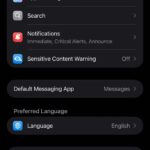
  1. Go to Settings > General > Shut Down.
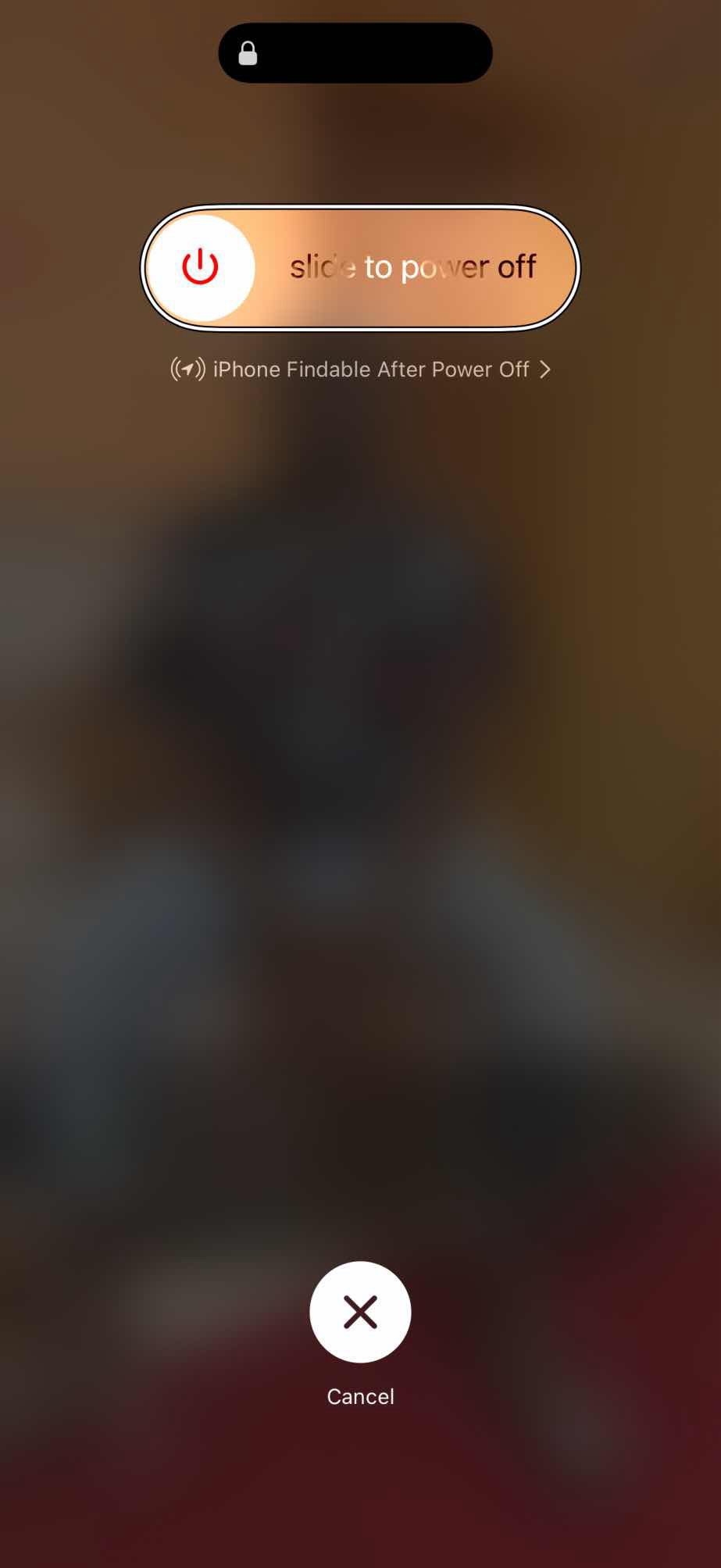
  2. Drag the Slide to Power Off slider.

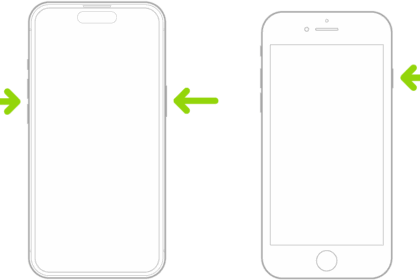
You can also shut down your iPhone using physical buttons:

  • iPhone with Face ID: Simultaneously press and hold the side button and either volume button until the sliders appear, then drag the Power Off slider.
  • iPhone with the Home button: Press and hold the side button, then drag the Slide to Power Off slider.
TAGGED:
Share This Article

About Our Expert

Dave Johnson
ByDave JohnsonVerified author
Senior Editor, Help & How To Guides
Follow:
Experience

As NerdsModo’s editor of how to content, I have to cover a wide variety of topics related to Apple products and also make our stories accessible to everyday users. Considering my history as a technical writer, copywriter, and all-around freelancer covering baseball, comics, and more at various outlets, I am used to making myself into an expert.

My job as how-to guru means I use just about every Apple product and service, so I can figure out how everything works. I work from a MacBook Air running macOS Tahoe, but also have a very large iMac and Apple silicon MacBook Pro. I also have an iPhone 16 Pro for personal use and use a iPhone 17 Pro Max for additional testing. For iPadOS coverage, an iPad Pro with M2 works like a charm, though it’s already becoming a little long in the tooth.

My desktop situation includes a dual display setup with an Apple Studio Display. I also use a Magic Trackpad, Magic Mouse and a Magic Keyboard with Touch ID and Numeric Keypad (my favorite Apple keyboard; I love it but my wife hates it!). I’m a recent convert from wired headphones; I have AirPods Pro 3 for personal use and have taken to the AirPods Max 2 for work.

Whenever I have a second to myself, I’m probably gaming on my Nintendo Switch, Steam Deck, or Xbox Series S. I also still have a bunch of classic consoles lying around as well.

Areas of Expertise

iOS iPadOS macOS watchOS

Leave a Comment