






Congratulations on getting a new iPhone! You’ve made a great choice.
Before you can start using your new iPhone, you need to set it up, configuring its operating system (iOS) — the software that makes the iPhone tick — to work the way you want it to. You may also need to activate the iPhone to connect it to Apple’s services and to your cellular carrier’s service.
You can turn on and set up your new iPhone with an internet connection. You can also set up iPhone by connecting it to your computer. If you have another iPhone, an iPad, or an Android device, you can transfer your data to your new iPhone.
Prepare for setup
To make setup as smooth as possible, have the following items available:
- An internet connection through a Wi-Fi network (you may need the name and password of the network)
- Your Apple Account and password; if you don’t have an Apple Account, you can create one during setup
- Your credit or debit card account information, if you want to add a card to Apple Pay during setup
- Your previous iPhone or a backup of your device, if you’re transferring your data to your new device
- Your Android device, if you’re transferring your Android content
Turn on and set up your iPhone
Turning on your iPhone
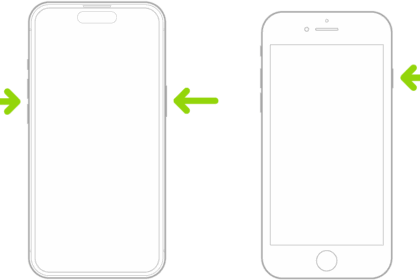
Start by turning on your iPhone. Press and hold the side button, the physical button on the iPhone’s right side. When the Apple logo appears on the screen, release the side button and wait until the Hello screen appears. Then swipe up from the bottom of the screen to begin the setup process.
Choosing the language, country or region, and appearance
A series of screens walks you through the first three steps of the setup process:
- Language: Choose the language you want your iPhone to use, such as English.
- Country or Region: Specify your country or region, such as United States.
- Appearance: Drag the slider along the Default–Medium–Large axis to choose the size of text and icons on the screen. Tap the Continue button.
At this point, the Quick Start screen appears, enabling you to finish setup quickly by using your current iPhone or iPad. Read on.
Using Quick Start or continuing setup
If you have an iPhone or iPad set up with your Apple Account, you can use that device to set up your new iPhone quickly. When the Quick Start screen appears, unlock your current device and bring it close to your new iPhone. Your iPhone then displays a complex pattern on the screen, and the Camera app opens on your other device, showing a target ring. Aim this ring at the pattern to establish the connection between the devices, and then authenticate yourself on your iPhone by entering the current device’s passcode. Follow the prompts to set up your iPhone based on your current device.
If you don’t have an iPhone or iPad to use, or if you want to set up your new iPhone differently, tap the Set Up Without Another Device button, and then follow through the next subsection.
Setting up your iPhone without another device
If you chose to set up your iPhone without another device, work your way through the following screens:
- Choose a Wi-Fi Network: Tap the Wi-Fi network you want to use, type the password on the Enter Password screen, and then tap the Join button.
- If you need to use a Wi-Fi network that hides its network name, tap the Choose Another Network button. On the screen that appears, type the network name and the password, and then tap the Join button.
- If no Wi-Fi network is available, tap the Continue Without Wi-Fi button to use a cellular data connection.
- Activation: Wait while iOS activates your iPhone over the Wi-Fi connection (or the cellular connection, if you tapped Continue Without Wi-Fi). Activation may take several minutes.
- Data & Privacy: Read the information, and then tap the Continue button.
- Face ID: Follow the prompts to scan your face by aiming the recognition circle at your head, and then rotating your head to replace the white marks with green marks. On the Use Face ID with a Mask screen, choose whether to configure Face ID for use when you’re wearing a protective mask.
- Create an iPhone Passcode: Tap the six-digit passcode you want to use, and then confirm it on the second screen.
Tip: If a six-digit passcode doesn’t suit you, tap the Passcode Options button on the Create an iPhone Passcode screen. In the dialog that opens, tap Custom Alphanumeric Code, Custom Numeric Code, or 4-Digit Numeric Code, as appropriate, and then enter the code twice on the following screens. A custom alphanumeric code of eight characters or more is the most secure, though it will take longer to type. A custom numeric code enables you to create a numeric code of the length you prefer. Four digits is the minimum. Each digit more than six digits makes the code that much more secure. A four-digit numeric code is not strong enough for serious security, but you might want to use such a short code on an iPhone you’re using for a demonstration, such as at a trade show. - Transfer Your Apps & Data: Choose whether (and if so, how) to transfer your apps and data to your new iPhone. You have five choices:
- From iCloud Backup: Tap this button if you have a backup of your current or previous iPhone and want to restore it to your iPhone.
- From Another iPhone: Tap this button if you have a current iPhone and want to transfer its apps and data. Normally, you would use the Quick Start feature earlier in the setup process to transfer your data from your current phone, but this button provides an alternative means.
- From Mac or PC: Tap this button if you used your Mac or PC to back up your previous iPhone and you want to restore data from one of those backups.
- From Android: Tap this button if your current device is an Android phone or tablet. You won’t be able to transfer apps available only on Android.
- Don’t Transfer Anything: Tap this button to set the iPhone up from scratch.
For the first four choices, follow the prompts in the resulting screens. For example, when restoring from an iCloud backup, you need to sign in to iCloud using your Apple Account, and then select the backup to use.
- Terms and Conditions: Read as much of the Terms and Conditions as you wish, and then tap the Agree button if you want to proceed.
- Make This Your New iPhone: This screen appears after you set up the means of transferring apps and data using one of the methods mentioned previously. The screen displays buttons summarizing what can be transferred, such as Apps & Data, Settings, and Wallet. If one of these buttons has > at its right end, you can tap the button to reveal a list of details — for example, tapping the Wallet button reveals a list of the payment cards to be transferred with Wallet. Tap the button again to hide the details. Tap the Continue button to continue with this selection, or tap the Customize button if you want to choose what to transfer.
- Update Your iPhone Automatically: Tap the Continue button if you want iOS to automatically download and install updates. Keeping iOS updated is wise from a security perspective, but it means you may occasionally find your iPhone updating when you want to use it. If you prefer to control when iOS installs updates, tap the Only Download Automatically button instead.
- Location Services: Tap the Enable Location Services button to enable Location Services immediately. Normally, you’ll want to enable Location Services because apps such as Maps depend on it. You can tap the Disable Location Services button if you don’t want to use Location Services or if you plan to enable it later.
- Apple Pay: Tap the Continue button (and then follow the prompts) if you want to set up Apple Pay now, adding one or more credit or debit cards. Tap the Set Up Later button if you prefer to set up Apple Pay later or not at all.
- Siri: Tap the Continue button to set up the voice-driven virtual assistant now, or tap the Set Up Later in Settings button to set up Siri later (or never). If you enable Siri, the Improve Siri & Dictation screen appears, prompting you to share your Siri audio recordings anonymously to help Apple improve Siri; tap the Share Audio Recordings button or the Not Now button, as appropriate.
- Screen Time: Tap the Continue button if you want to activate iOS’s parental-control and self-control feature now. Screen Time can be highly effective for tracking iPhone usage, either your own or that of your family members. However, if you don’t plan to use Screen Time, tap the Set Up Later in Settings button instead.
- iPhone Analytics: Tap the Share with Apple button or the Don’t Share button, as appropriate, to choose whether to share analytics data anonymously to help Apple improve the iPhone and iOS.
- App Analytics: Tap the Share with App Developers button or the Don’t Share button, as appropriate, to choose whether to share app analytics data with developers, again anonymously.
Once you’ve completed setting up your new iPhone, the Lock screen appears. Unlock it using Face ID. After you unlock your phone, the Home screen appears.