






Summary
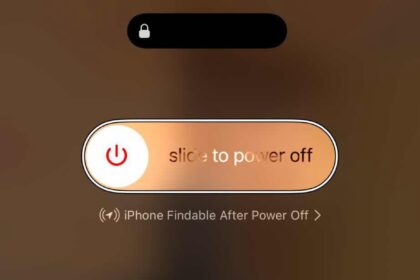
To hard reset your iPhone, press and quickly release the volume up button. Press and quickly release the volume down button. Press and hold the side button. When the Apple logo appears, release the side button. This method “forces” your iPhone to turn off, even if it’s frozen.
If your iPhone becomes unresponsive and you can’t shut it down using the normal methods, it’s time to try a forced restart—sometimes called a "hard reset" (which is not to be confused with a factory reset). Luckily, it’s easy to force your iPhone to restart using just three button presses. Here’s how.
What Is a Hard Reset?
A hard reset will force your iPhone to power off and restart without the typical shutdown process. Shutting down the usual way is important because it tidies things up before powering off your iPhone. But if your iPhone becomes unresponsive, sometimes you’re forced to take a more drastic step by forcing a reboot.
Reasons You May Need to Hard Reset an Apple iPhone
There are many reasons why you may need to hard reset your Apple iPhone. Maybe your iPhone screen is unresponsive, or your phone is running slow.
Here are the most common reasons you may need to hard reset your iPhone
- Your iPhone is slow
- You have a frozen iPhone
- There is an error code
- Your iPhone won’t reboot
Whatever the reason, hard resetting an iPhone is a simple process that you can do in just a few minutes.
Be advised that a hard reset should only be used rarely. Using a forced reboot regularly may cause problems with your iPhone. Your iPhone should be shut down gracefully unless it’s frozen or otherwise unresponsive.
How to hard reset an iPhone
The instructions on how to hard reset an iPhone vary depending on the model of your device. If you’re not sure which iPhone model you own, check out Apple Support article to learn how to identify your iPhone.
Quick tip: The button we call the Power buttonis also sometimes called the Lock button or the Side button.
How to Hard Reset iPhone 8, iPhone SE (2nd and 3rd generations), iPhone X, iPhone 11, iPhone 12, iPhone 13, iPhone 14, iPhone 15, iPhone 16, iPhone 17, or iPhone Air
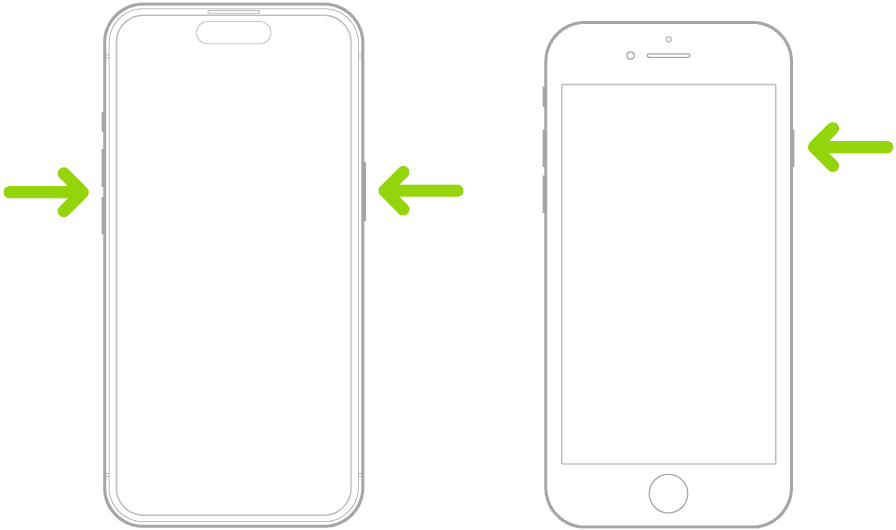
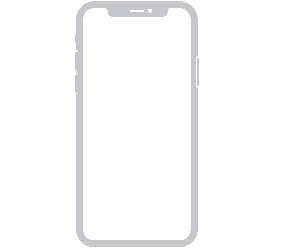
To hard reset an iPhone 8 or newer, you’ll need to do three button presses in rapid succession. On the last button press, you’ll need to keep holding the button. Here’s how:
1. Press and release the Volume Up button.
2. Press and release the Volume Down button.
3. Press and hold the Side button (the Sleep button).
4. Wait until you see the Apple logo, and then release the button.
How to Hard Reset iPhone 7
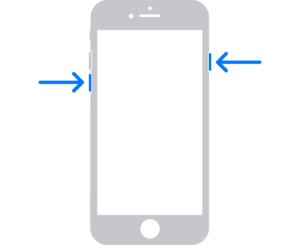
To hard reset an iPhone 7 or iPhone 7 Plus, you’ll need to press two buttons simultaneously. You’ll need to keep holding the buttons. Here’s how:
1. Press and hold the Volume Down and Side (Sleep) buttons at the same time.
2. Hold the buttons until the Apple logo appears, then release the buttons.
How to Hard Reset an iPhone 6s, iPhone SE (1st generation), or earlier
To hard reset an older iPhone, such as the iPhone 6s, the first-generation iPhone SE (from 2016), or older, you’ll need to press two buttons simultaneously. You’ll need to keep holding the buttons. Here’s how:
1. Press and hold the Home and Side (Sleep) or top buttons at the same time.
2. Hold the buttons until the Apple logo appears, then release the buttons.
How to force restart an iPhone without buttons?
You can use Siri to hard reset your iPhone without buttons.
As long as you have the "Hey Siri" feature enabled, which constantly listens for the two-letter command, you can say the following to force restart your iPhone without buttons:
- First, say ”Hey Siri” to activate Siri.
- Next, say ”Restart iPhone.”
- And last, say ”Yes” when Siri prompts you to confirm.
- Your iPhone will then restart. You’ll need to enter your passcode to unlock your screen.
If you don’t have "Hey Siri" enabled, you can go to Settings > Siri (or Apple Intelligence & Siri)) > Talk & Type to Siri and select “Siri” or “Hey Siri”.
Frequently Asked Questions
How do I turn off my iPhone if the buttons aren’t working?
- Go to Settings > General, scroll to the bottom, tap Shut Down, then drag the slider.
- Open Control Center (swipe down from the top-right corner on iPhone X and later, or swipe up from the bottom edge on older models), press and hold the power icon, then drag the slider.
- Say “Hey Siri, turn off my iPhone” and confirm when Siri asks.
How do I force restart an iPhone that won’t turn off?
- iPhone X and later (including iPhone 11–17 families): Quickly press and release Volume Up, then quickly press and release Volume Down, then press and hold the Side button until the Apple logo appears.
- iPhone 7 and 7 Plus: Press and hold both the Side button and Volume Down at the same time until the Apple logo appears.
- iPhone 6s and earlier: Press and hold both the Home button and the Side or Top button until the Apple logo appears.