





- A call failed message could be a problem with your cellular provider or your iPhone.
- You should toggle Airplane mode, restart your phone, and reset your SIM card.
- Check Do Not Disturb, Wi-Fi Calling, and call-blocking settings that can silently prevent calls.
- You can also reset your iPhone’s network settings, but that will erase passwords.
- If nothing works, contact your carrier first, then Apple Support.
There you are, about to make an important call when your iPhone suddenly flashes the dreaded “Call Failed” message. Your heart sinks, and frustration kicks in. What went wrong?
Why Does My iPhone Say Call Failed?
When your iPhone keeps showing a “Call Failed” message, it usually means the device couldn’t maintain a connection with the cellular network. This could be due to a wide range of issues—from a weak signal to iOS glitches.
Common reasons why your iPhone says “Call Failed”:
- Signal dropped.
- Network congestion.
- Problem with cellular network.
- SIM card issues.
- Problem with the Phone app.
- Carrier-related problems.
- iOS glitch.
- Do Not Disturb or Focus mode blocking calls.
- Wi-Fi Calling interfering with your cellular connection.
How to fix “Call Failed” on iPhone
If you’re trying unsuccessfully to place a call, here are the most common ways to fix the call failed error on an iPhone:
Try your call again
The first thing you should do when you encounter “Call Failed” error on your iPhone is to try making the call again. Often, a call will fail thanks to a temporary signal drop, and the call will work just fine a minute later. Before you do anything else, tap the dial button to redial your last number.
Close All Of Your Apps
It’s possible the call failed on your iPhone because of a glitch with the Phone app. Closing and reopening the app can fix a minor software glitch. We recommend closing all of your apps, just in case a different apps has crashed in the background.
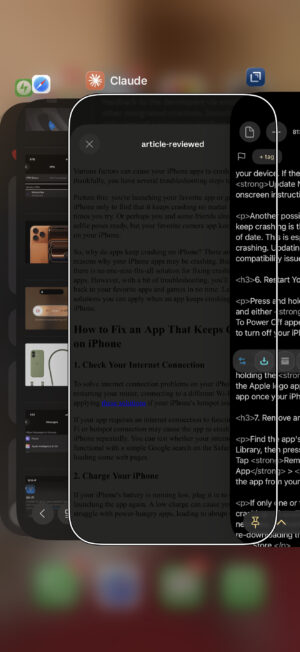
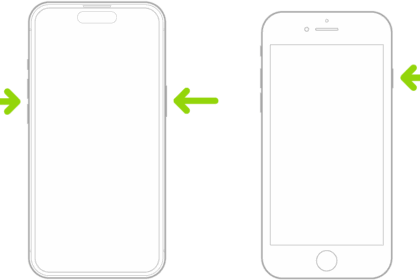
- Open the app switcher by double-pressing the Home button (iPhones without Face ID) or swiping up from the very bottom of the center of the screen (iPhones with Face ID).
- Swipe your apps up and off the top of the screen.
Open the Phone app again and try making a call. If the call still fails, move onto the next step.
Check Your Blocked Contacts
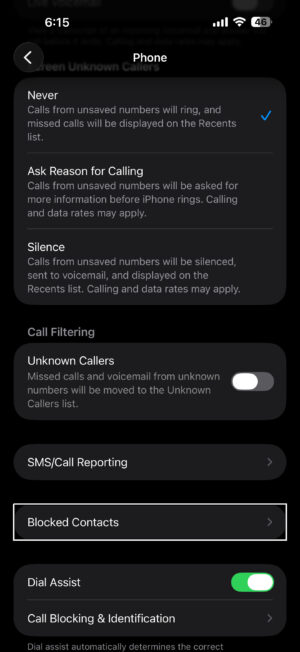
Go to Settings > Apps > Phone > Blocked Contacts and scroll through the list to make sure the person you’re trying to call isn’t on it. On iOS 26, you can also find this list under Settings > Privacy & Security > Blocked Contacts.
It’s surprisingly easy to block a number by accident — a wrong swipe in the Recents tab is all it takes, and you’d never know unless you checked. If the number is on the blocked list, swipe left on it and tap Unblock. While you’re in the Phone settings, also check two other settings that can silently block calls. Go to Settings > Apps > Phone > Call Forwarding and make sure it’s turned off — if your calls are being forwarded to a number that can’t be reached, every outgoing attempt will look like it failed. And go to Settings > Apps > Phone > Silence Unknown Callers and turn it off if you’re not receiving incoming calls from numbers that aren’t in your contacts.
Turn Airplane Mode On And Off
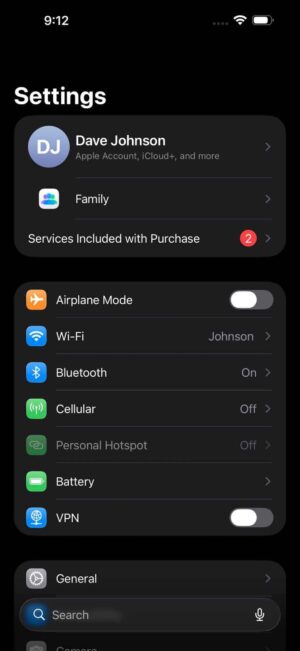
One of the most common reasons a call fails on your iPhone is because of a glitch with your cellular connection. You can fix this by turning Airplane mode on and off.
- Go to Settings.
- Turn on Airplane Mode.
- Wait five seconds.
- Turn off Airplane Mode.
Check Do Not Disturb And Focus Mode
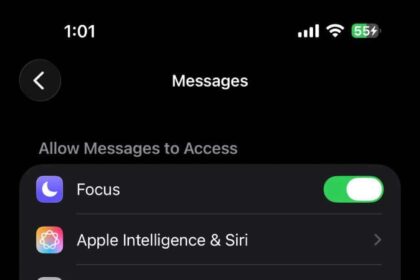
Go to Settings > Focus > Do Not Disturb and make sure it’s turned off. If you have other Focus modes set up (like Work or Sleep), check those too — any active Focus mode can block incoming calls without giving you any visible warning.
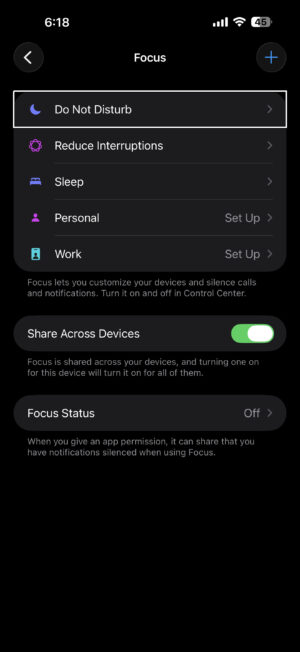
Do Not Disturb won’t stop you from placing outgoing calls, but it can prevent incoming calls from ringing through, which makes it look like calls are failing on both ends. The person calling you gets sent straight to voicemail, and neither of you sees a missed call notification (which is especially confusing). If you travel between time zones or have old Focus schedules you forgot about, a mode might be activating at unexpected times without you realizing it.
Try moving your location
It’s possible that you’re in a location that has poor service — good enough that your phone thinks it has cellular service, and you’ll see a bar or two of signal strength at the top of your phone — but bad enough that it can’t actually complete a connection. Try to make a call in another location. If you’re indoors, go outside, or otherwise try to change your location and make a call.
Restart your iPhone
The next step you can take if your iPhone call failed is to restart your device. Restarting your iPhone can fix a variety of small issues by allowing of its programs to shut down naturally. Simply turn your iPhone off, wait a minute, and then turn it back on again.
If a regular restart doesn’t help, try a force restart instead. On iPhones with Face ID, press and quickly release the Volume Up button, press and quickly release the Volume Down button, then press and hold the Side button until the Apple logo appears. A force restart clears out deeper system-level processes that a normal restart leaves running — it’s the same phone, but it’s a harder reset of the software stack.
Turn Off Wi-Fi Calling
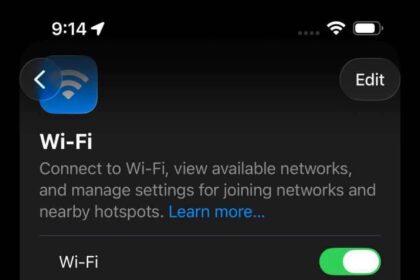
Go to Settings > Apps > Phone > Wi-Fi Calling and turn off Wi-Fi Calling on This iPhone.
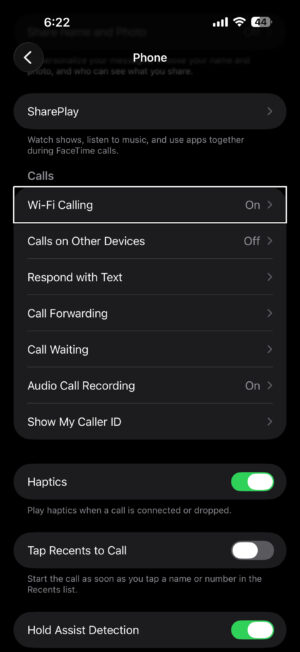
Wi-Fi Calling is supposed to let you make calls over a Wi-Fi network when your cellular signal is weak, but it can actually cause call failures when the handoff between Wi-Fi and cellular doesn’t go smoothly. This is one of those fixes that comes up over and over again in Apple’s support forums — people spend hours troubleshooting airplane mode and SIM resets, and then turning off Wi-Fi Calling is what finally fixes it. If your calls start working after you turn it off, you can try re-enabling it later to see if the problem was temporary. But some carriers and router configurations just don’t play well with Wi-Fi Calling, and leaving it off permanently is a perfectly fine option.
Check For A Carrier Settings Update
Carrier settings updates can help improve the connection between your iPhone and wireless carrier’s network. It’s a good idea to immediately update the carrier settings when an update becomes available.
You’ll typically receive a pop-up on your iPhone when a carrier settings update is available. Tap Update if you see that notification.
You can manually check for a carrier settings update by connecting your device to the internet and following these steps:
- Go to Settings.
- Tap General.
- Tap About.
- A pop-up will appear if a carrier settings update is available. Tap Update if it does.
If no pop-up appears, move onto the next step.
Check For An iOS Update
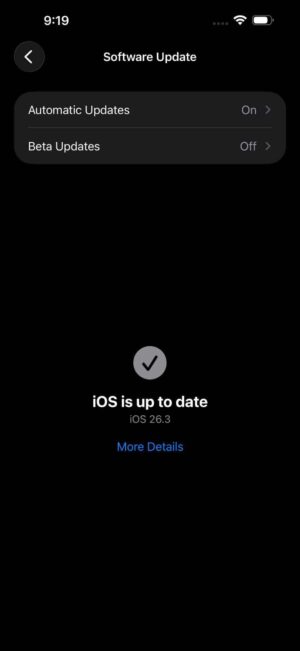
Apple routinely releases iOS updates to fix known bugs and occasionally introduce new features. We recommend installing new iOS updates and see if that will fix your problem.
- Go to Settings.
- Tap General.
- Tap Software Update.
- Tap Update Now if an update is available.
Eject And Reinsert The SIM Card
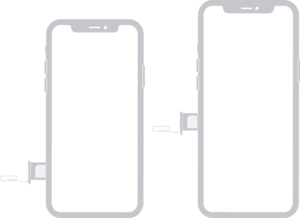
If your iPhone has a physical SIM card, there’s a chance that there’s a problem with the way the SIM card is seated in its tray, and the phone can have trouble reading all the contacts on the card. Ejecting and reseating the SIM card can help fix this problem.
As long as you are careful, it’s not hard to eject the SIM card from your iPhone. Switch off your phone first. Then, use the SIM ejector tool to push into the hole beside the SIM tray to release it. Take out the SIM card and check for damages before putting it back in properly.
If you have an iPhone 14 or newer purchased in the United States, your phone uses an eSIM instead of a physical SIM card — there’s no tray to eject. If you’re having call failures on an eSIM model and nothing else has worked, you can try removing and re-adding the eSIM by going to Settings > Cellular, tapping your eSIM, and selecting Delete eSIM. Then tap Add eSIM to set it up again. Make sure you have your carrier’s activation information handy before you do this, because you’ll need it to re-add the eSIM.
Reset your network settings
If you’ve tried everything else and your iPhone can’t complete any phone calls due to the Call Failed error, we recommend that you reset your phone’s network settings.
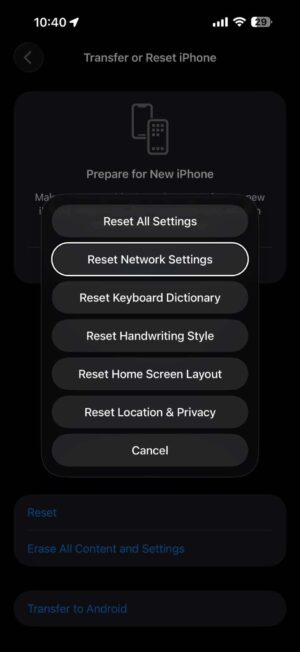
Save this as a last resort, because this troubleshooting step will erase all your network settings. This means you’ll have to reenter your Wi-Fi passwords and reconfigure any virtual private networks on your iPhone. It’s a little bit of an inconvenience, but it can fix the problem when calls fail on your iPhone.
- Go to Settings.
- Tap General.
- Tap Transfer or Reset iPhone.
- Tap Reset.
- In the pop-up menu, select Reset Network Settings.
- Enter your iPhone’s Passcode.
- Select Reset Network Settings to confirm your decision.
Contact your carrier
If resetting network settings didn’t work, it’s time to contact your wireless carrier for assistance. Since calls are failing, you might need to visit the carrier’s store. There might be an issue with your account only a customer support representative can resolve.
Before you go, check your carrier’s website or app (like the My Verizon or myAT&T app) for any service outages in your area. If there’s a known outage, there’s nothing wrong with your phone — you just have to wait it out. If there’s no outage, the carrier can check whether your account has a billing-related block, whether your line needs to be re-provisioned, or whether there’s an error on their system tied to your number. These are things you can’t fix from your iPhone’s settings no matter how many resets you try.
iPhone Call Failed Problem: Fixed!
If none of the troubleshooting steps above solved the call failed error on your iPhone, your next step should be to contact Apple Support. You can reach them through the Apple Support app, online at support.apple.com, or by scheduling an appointment at your nearest Apple Store. There’s a small chance the issue is hardware-related — a damaged antenna or a failing modem chip can cause persistent call failures that no software fix will touch.
As a last resort before contacting Apple, you can try a factory reset by going to Settings > General > Transfer or Reset iPhone > Erase All Content and Settings. Back up your iPhone first, because this wipes everything. It’s a drastic step, but if the problem is a deep iOS corruption that survived a network settings reset, a full erase and restore can clear it.
You’ve fixed the problem and your iPhone calls aren’t failing anymore. Share this article on social media to teach your friends and family what to do if calls fail on their iPhone. Leave a comment below to let us know which fix worked for you!
Frequently Asked Questions About Call Failed on iPhone
Most of the time, a "Call Failed" message means your iPhone couldn't hold a stable connection to the cellular network long enough to complete the call. A weak or dropped signal is the most common culprit — you might have a bar or two showing at the top of your screen, but that doesn't always mean the connection is strong enough to carry a voice call. Network congestion, a glitch in iOS or the Phone app, SIM card problems, and carrier-side issues can all trigger the same error. Settings like Do Not Disturb or a misconfigured Wi-Fi Calling setup can also interfere with calls without giving you any obvious warning. If the error keeps happening, it's worth checking whether your carrier is experiencing an outage in your area before diving into on-device troubleshooting.
No — "Call Failed" almost always points to a problem on your end, not the recipient's. The message appears when your iPhone can't connect to the cellular network to place the call in the first place, which means the call never reached the other person at all. If someone has blocked your number, you'll typically hear one ring (or no rings) followed by a redirect to voicemail, and your iPhone won't display a "Call Failed" alert. If you're seeing "Call Failed" on every call you try to make — not just calls to one specific person — that's a strong sign it's a network or device issue rather than a block.
iMessages and many third-party messaging apps send over Wi-Fi or mobile data, so they'll keep working even when your cellular voice connection is too weak or disrupted to carry a phone call. If you're in a spot with poor coverage — enough signal for your iPhone to show a bar or two but not enough to complete a call — texting can appear to work fine while every call attempt fails. A SIM card that isn't seated properly, an iOS glitch, or a carrier-side provisioning issue can also break voice service without affecting data. Toggling Airplane Mode on and off forces your iPhone to reconnect to the cellular network and often clears up the mismatch.
Wi-Fi Calling is designed to route your calls over a Wi-Fi network when cellular signal is weak, but it can actually cause call failures when the handoff between Wi-Fi and cellular doesn't go smoothly. This comes up frequently in Apple's support forums — people spend hours cycling Airplane Mode and reseating their SIM, and turning off Wi-Fi Calling ends up being the fix. You can disable it by going to Settings > Apps > Phone > Wi-Fi Calling and switching off Wi-Fi Calling on This iPhone. If your calls start connecting again after you turn it off, you can try re-enabling it later, but some carrier and router combinations don't play well with the feature long-term.
The fastest way to tell is to check whether other phones on the same carrier are having trouble in your area. If they are, or if your carrier's app or website shows a service outage, the problem is on the network side and you'll need to wait it out. You should also check your carrier account for any billing-related blocks or provisioning errors — these can silently prevent calls and aren't something you can fix from your iPhone's settings. If other phones on your network work fine and your account is in good standing, the issue is more likely on your iPhone. Run through the standard fixes — toggling Airplane Mode, restarting, reseating or re-adding your SIM — and if nothing works, contact Apple Support, because persistent call failures that survive a network settings reset can sometimes point to a hardware issue like a damaged antenna.
No. "Call Failed" means your iPhone couldn't establish or maintain a connection to the cellular network — the call never made it to the other person's phone at all. If someone declines your call, your iPhone shows "Call Ended" or sends you to voicemail, not "Call Failed." And if a call drops mid-conversation because of poor signal on either end, you'll usually see "Call Ended" rather than "Call Failed." The "Call Failed" message specifically indicates a problem between your iPhone and the network, so it's a signal to troubleshoot your own device or check with your carrier rather than assume the other person did something.