






Are you unable to download apps on your iPhone? There are several reasons your iPhone might not let you download any apps, from problems with your internet connection to a lack of storage on your device. Here are some solutions you can try if you can’t download apps on your iPhone from the App Store.
How to fix apps not downloading on iPhone
1. Test Your Internet Connection
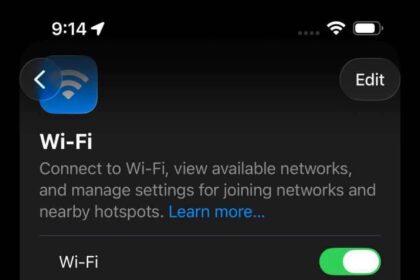
The first thing you should do if apps are not downloading on your iPhone is to make sure that you are connected to the internet. Most of the time, you should connect to Wi-Fi, since cellular downloads use up your data allowance and often only let you download apps smaller than 200MB. Go to settings > Wi-Fi and make sure that you are connected to a working Wi-Fi network.
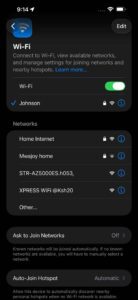
After connecting to Wi-Fi, test your internet connection by streaming a video on YouTube. If the connection is slow or unstable, toggle Wi-Fi off and back on from the Control Center. You can access this by swiping down from the top-right corner of your iPhone screen.
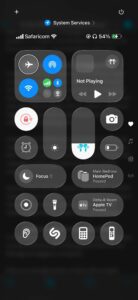
Problems with Wi-Fi can be caused by temporary service outages or local network hardware failure. You might want to power cycle your router and modem (waiting around 10 seconds between switching devices off and then on again) to rule out local network problems as a cause.
See also: iPhone not connecting to Wi-Fi? Here’s how to fix it
If you need to use mobile data to download apps instead, make sure you allow the App Store to use cellular data on your iPhone. Go to Settings > Cellular. Scroll down to the list of apps and turn on App Store.
Then go to Settings > Apps > App Store, tap App Downloads and choose if you want your iPhone to ask permission before downloading apps over 200MB in size.
See also: iPhone Cellular Data Not Working? Here’s the Fix (8 Ways)
2. Disable Your VPN
The easiest way to rule out your VPN as a cause is to disable it and try again. To do this, open your VPN provider’s app and disconnect. You can also try switching servers, to see if the problem is caused by your configuration. Once you disable VPN, open the App Store and try downloading apps again.
VPNs are useful and almost certainly worth paying for, but they can cause all sorts of problems too. This could be a temporary problem with your chosen VPN provider or local server, but it could also be so-called "suspicious" activity that Apple has chosen to block. Sometimes, VPN providers that offer a kill switch to disable all internet traffic when the connection drops. Don’t forget to enable your VPN again when you’re done troubleshooting.
3. Make Sure Your Have Enough Free Space
Go to Settings > General > iPhone Storage to see how much free space you have and take a look at which apps are using the most. There are plenty of ways to create more free space on your iPhone if you need to, such as offloading apps, uploading photos to the cloud, or deleting junk that you no longer need. You can do all of this from the iPhone storage settings.
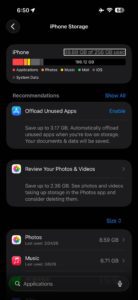
Internal iPhone storage is not expandable. You can’t download new apps on your iPhone if you’ve already filled up your device with photos, videos, music, and other content.
When this happens, an alert should pop up saying "Not Enough Storage."
4. Add a payment method on your iPhone
You might need to have a valid payment method on file, even if the app that you want to download is free.
- Open the Settings app on your iPhone.
- Tap your name.
- Tap Payment & Shipping. You might be asked to sign in with your Apple Account.
- Tap Add Payment Method.
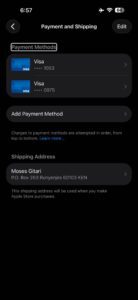
- Enter the payment method details, then tap Done.
If you’ve already added a payment method, it’s possible that the payment details on your account expired, so you should check if you need to update them.
5. Make Sure the Date and Time Are Set Correctly
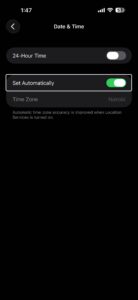
You may encounter problems downloading apps on your iPhone if the date and time aren’t set correctly for your time zone. An easy fix to this is to set the date and time automatically by going to Settings > General > Date & Time.
6. Turn Off Content and Privacy Restrictions
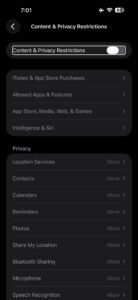
The content and privacy restrictions on an iPhone let you limit settings, apps, or features to keep the device safe for children. However, those same limitations explain why you can’t download new apps on your iPhone.
To edit your restrictions:
- Go to Settings > Screen Time > Content & Privacy Restrictions.
- If prompted, enter your Screen Time passcode, which may be different from the standard passcode you use to unlock your iPhone.
- Turn off all Content & Privacy Restrictions at the top of the screen or change the following setting:
- Tap iTunes & App Store Purchases > Installing Apps.
- Select Allow to enable installing apps.
7. Pause and Resume Your App Download
Sometimes, if your iPhone won’t download apps, all you need to do to fix it is pause the download, then resume it again. You can do this from the Home Screen on your device. While an app is downloading, it should appear on the Home screen as a darkened app icon with a progress circle in the middle. Tap it to pause the download—causing a pause symbol to appear. Wait a few seconds, then tap it again to resume the download.
Alternatively, tap and hold on the app icon to reveal a quick-action menu. You can choose to Pause Download or Resume Download from this menu as well.
Alternatively, you have the option to Prioritize Download from the quick-action menu. This is a good idea if your iPhone is downloading other content as well, since it prioritizes this app above all other downloads.
8. Sign Out of the App Store, Then Sign In Again
Though problems downloading apps on your iPhone is likely a connectivity issue, signing out of App Store and then in again is also worth a shot. You can do this under Settings > [Your Name] > Media & Purchases by tapping the "Sign Out" button. This will sign you out of the App Store while leaving your main Apple account signed in.
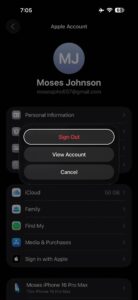
You can then sign in and attempt to access the App Store again, using the same menu.
9. Restart Your iPhone
A quick restart can resolve any temporary glitches that may be preventing your iPhone from downloading apps. You can restart your iPhone by asking Siri to "restart my iPhone" which will power down and then power up your device.
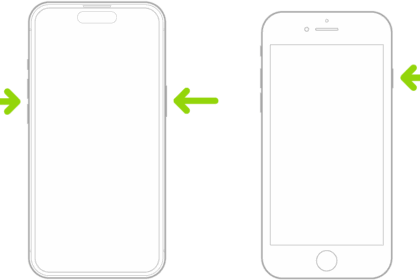
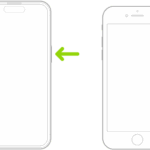
Alternatively, press and hold the Side button with either Volume button. When prompted, slide to power off your iPhone.
Wait 30 seconds after it powers off before pressing the Side button again to restart it.
10. Delete the App, Then Download It Again
Sometimes a download becomes so corrupted that the only way to fix it is deleting the half-downloaded app and downloading it again from scratch. If you never used the app before, there’s nothing to lose from doing this.
However, if you were trying to update an app rather than download it for the first time, deleting it might also delete any data you have saved in the app. You should make a backup of your iPhone before deleting apps to protect your data.
- Tap and hold the app icon on the Home Screen. In the quick-action menu that appears, tap Remove App, tap Delete App, then tap Delete to confirm.
- Go to the App Store and redownload the app.
11. Consider Resetting Network Settings
If you’ve tried everything and you still can’t update apps on your iPhone, consider resetting your network settings. Doing this will restore settings like DNS and proxy configurations to factory defaults, and you’ll also lose all of your saved Wi-Fi credentials for any wireless networks you have added to your device. To do this, head to Settings > General > Transfer or Reset iPhone > Reset and pick "Reset Network Settings" from the list of options that appear. Confirm your choice and wait for the reset to complete.
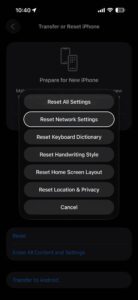
The first thing you’ll probably want to do is head to Settings > Wi-Fi and connect to your local wireless network. You can then try downloading apps again.
Conclusion
By now, you should be able to download as many apps as you want. If your iPhone still won’t download apps from the App Store, contact Apple Support for more help.
Frequently Asked Questions About Apps Not Downloading on iPhone
The most common cause is a poor or unstable internet connection, especially if you're on cellular data instead of Wi-Fi. Low storage space is another frequent culprit — your iPhone can't install new apps if there's no room left on the device. A VPN running in the background can also interfere with the App Store's ability to connect to Apple's servers. Beyond connectivity and storage, an expired or missing payment method on your Apple account, incorrect date and time settings, or Content & Privacy Restrictions blocking app installs through Screen Time can all prevent downloads from going through.
In most cases, yes. Apple requires a valid payment method on file even when you're downloading a free app. If your credit card has expired or your billing details are incomplete, the App Store may block all downloads — paid and free alike. You can add or update a payment method by opening Settings, tapping your name, then going to Payment & Shipping and entering your current card details.
An app that's frozen on "Waiting" or showing a stalled progress circle usually means the download hit a connection hiccup or got queued behind other active downloads. Try tapping the dimmed app icon on your Home Screen to pause it, wait a few seconds, then tap it again to resume. If your iPhone is downloading several apps at once, tap and hold the icon of the one you need most and choose Prioritize Download from the menu. A quick restart of your iPhone can also clear temporary glitches that cause downloads to stall.
You can download apps over cellular data, but your iPhone may ask for confirmation if the app is larger than 200MB. To make sure the App Store is allowed to use your mobile connection, go to Settings > Cellular and check that the toggle next to App Store is turned on. You can also head to Settings > Apps > App Store, tap App Downloads, and choose whether your iPhone should always allow cellular downloads or ask first when an app exceeds 200MB.
It depends on the app. If you've never used the app before and it's stuck mid-download, deleting and redownloading it won't cost you anything. But if you're trying to fix an update that went wrong on an app you already use, deleting it could also remove any locally saved data inside that app. Back up your iPhone before deleting an app that holds data you care about, then head to the App Store to redownload it fresh.