








You’re launching your favorite app or game on your iPhone only to find that it keeps crashing no matter how many times you try. Or perhaps you and some friends already have your selfie poses ready, but your favorite camera app keeps crashing on your iPhone.
So, why do apps keep crashing on iPhone? There are many reasons why your iPhone apps may be crashing. Because of this, there is no one-size-fits-all solution for fixing crashing iPhone apps. However, with a bit of troubleshooting, you’ll be able to get back to your favorite apps and games in no time. Let’s look at the solutions you can apply when an app keeps crashing on your iPhone.
How to Fix an App That Keeps Crashing on iPhone
1. Check Your Internet Connection
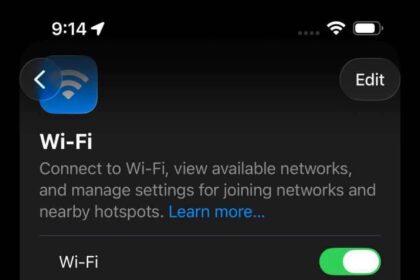
If your app requires an internet connection to function, poor Wi-Fi or hotspot connection may cause the app to crash on your iPhone repeatedly. You can test whether your internet is functional with a simple Google search on the Safari app and loading some web pages. To solve internet connection problems on your iPhone, try restarting your router, connecting to a different Wi-Fi network, or applying these solutions if your iPhone is not connecting to wi-fi.
2. Charge Your iPhone
If your iPhone’s battery is running low, plug it in to charge before launching the app again. A low charge can cause your device to struggle with power-hungry apps, leading to abrupt crashes.
If you’re playing a multiplayer game with high-quality graphics, yet there’s only a battery level of 10 percent left on your iPhone, your app might close abruptly because your device is struggling to provide enough power to support it.
Heavy usage of your iPhone while charging will likely result in overheating. This might cause your iPhone to lag and close apps. It’s also bad practice if you want to maintain your iPhone’s battery health.
3. Close and Relaunch the App
Swipe up from the bottom of the screen to launch the App Switcher, swipe left or right to find the crashing app, and swipe up to close it. Then, head to your Home Screen to relaunch the app.
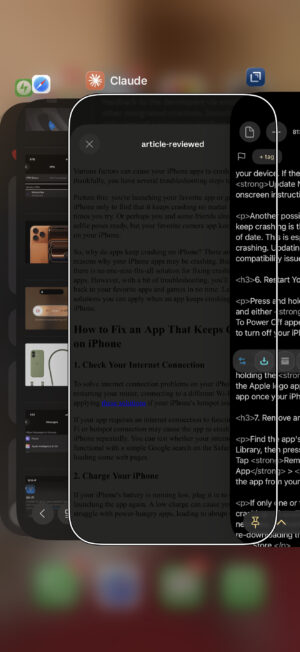
Even if an app closes abruptly on your iPhone, it may still be open in the background, albeit unresponsive. When you re-open the app from the App Switcher, it may only display a blank screen and crash once more. Exiting the app completely before relaunching it clears that stuck state.
4. Update the App
Developers often release app updates to fix bugs and patch other performance issues. When your apps keep crashing on your iPhone, updating them may just be the trick to solving the problem. Go to the App Store and search for the app that keeps crashing. If an update is available, you’ll see an Update button instead of the usual Open button. Tap Update to install the latest version. If multiple apps keeps crashing on your iPhone, tap your profile icon at the top right corner of the screen, then tap update all.

5. Update Your iPhone
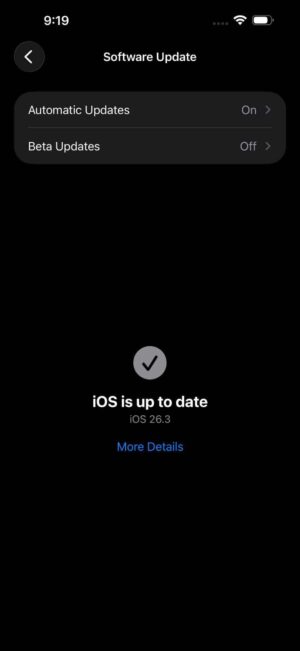
Another possible reason why your iPhone apps keep crashing is that your iPhone software may be out of date. This is especially true if a native iOS app is crashing. Updating your iPhone’s software can resolve compatibility issues that cause apps to crash. Go to Settings > General > Software Update to see if an update is available for your device. If there is a pending update, tap Update Now and follow the onscreen instructions.
6. Restart Your iPhone
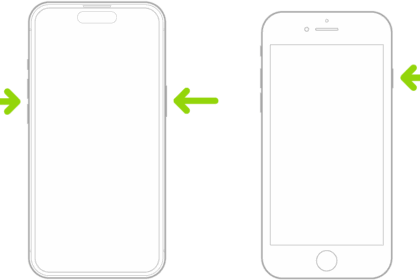
Press and hold the side button and either volume button until Slide To Power Off appears. Drag the slider from left to right to turn off your iPhone. Wait 15 seconds or so, until your iPhone has shut all the way off, and then turn your iPhone back on by holding the side button down until the Apple logo appears on the screen. Try opening the app once your iPhone has fully restarted.
7. Remove and Reinstall the App
If only one or two of your iPhone apps keep crashing, reinstalling the problematic apps will fix the problem. Find the app’s icon on the Home Screen or App Library, then press and hold it until the menu appears. Tap Remove App > Delete App > Delete to uninstall the app from your iPhone. To reinstall, open the App Store app and search for the application you just deleted. Once you’ve found it, tap the Cloud icon to the right of its name. The app will then be reinstalled on your iPhone and appear on the Home Screen. Open the app and check if the problem is fixed.
8. Check Your iPhone’s Storage
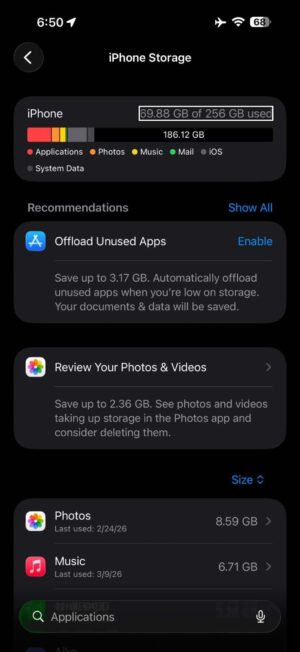
Low storage space may affect your iPhone’s performance and cause your apps to keep crashing. If your iPhone storage is nearly full, it’s best to start creating free space on iOS. Go to Settings > General > iPhone Storage to check the available space on your iPhone. You’ll see an overview of the apps taking up the most storage. If you spot any apps you don’t use, remove them to free up space.
9. Reset All Settings
if apps still keep crashing on your iPhone, go to Settings > General, scroll all the way to the bottom of the page, and tap Transfer or Reset iPhone. Select Reset and choose Reset All Settings. This restores all your iPhone’s settings to their default state without deleting your data.
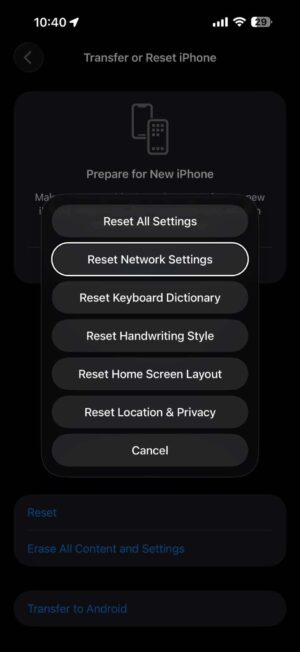
Your iPhone won’t delete any data as long as you don’t accidentally choose Erase All Content and Settings.
10. Check if an App Update Is in Development
Visit the app’s official website or social media pages to see if the developers have acknowledged the issue. Developers may announce that they are aware of the problem and are working on a hotfix or update to fix it.
This way, you will know whether or not the developers plan to fix the crashing issue in a future update. And if they are, all you need to do is wait for its release. An iPhone app that keeps crashing for many users is no small issue, so developers tend to prioritize these fixes.
11. Provide Feedback to the App Developer
If you didn’t spot any announcements, provide feedback to the developers via email or other designated channels. Sometimes, only users of a particular platform or device will experience frequent app crashes, and developers may be unaware of the extent of the issue, especially if it’s an indie app with a smaller customer base.
While it’s understandably frustrating that your iPhone app keeps crashing when you want to use it, be polite and constructive in your feedback. Remember that app developers are people, too!
12. Replace With a Similar App
Head to the App Store to find and install another app that serves the same purpose as a replacement. If you notice that the latest version history of the crashing app was a year or two ago and its social media hasn’t been updated in ages, chances are that the developers are no longer active and won’t be releasing a fix.
Get Your iPhone Apps Working Again
If you’ve had a headache over wondering why your apps keep crashing on your iPhone, we hope our list of fixes has helped you resolve the problem.
Focus on finding out if it’s an app-specific issue or whether the root cause is your iPhone. It’s always worth keeping things up-to-date on your iPhone to enjoy the latest features and ensure app compatibility.
If you have tried all the above solutions, the issue may be the app itself when it keeps closing. Although this is beyond your control, it’s good to inform the app Developer about the problem you are having.
Frequently Asked Questions About Apps Keep Crashing On iPhone
Several things can trigger app crashes on an iPhone. Outdated apps are one of the most common culprits — developers release updates to patch bugs and improve stability, and skipping those updates leaves apps prone to glitches. Running an older version of iOS can create compatibility mismatches that cause apps to close unexpectedly, too. Beyond software, low storage space, a weak internet connection, and a low battery can all contribute to repeated crashes. If the problem is limited to one app, that app likely has a bug; if multiple apps are crashing, your iPhone itself is probably the source of the issue.
A new iOS version can break compatibility with apps that haven't been updated to match it yet. Developers need time to test against Apple's changes and release new versions, and until those patches arrive, affected apps may freeze or close on launch. Checking the App Store for pending app updates right after installing an iOS update often clears this up. If the crashing app doesn't have an update available, the developer may still be working on a compatible version — you can check their website or social media for any announcements about a fix.
Why does my iPhone app open and then close immediately?
When an app flashes on screen and then closes right away, it's usually still running in the background in an unresponsive state. Reopening it from the Home Screen may only show a blank screen before the app crashes again. Force quitting the app through the App Switcher — swipe up from the bottom and pause, find the app, then swipe it up — clears that stuck state and lets the app launch fresh. If the app still crashes immediately after force quitting, deleting it and reinstalling it from the App Store will remove any corrupted data that could be causing the problem.
Low storage space can definitely cause apps to crash. Your iPhone needs free space to run apps and handle background processes, and when storage is nearly full, apps may close unexpectedly or refuse to open at all. You can check how much space you have by going to Settings > General > iPhone Storage, which also shows you which apps are taking up the most room. Removing apps you don't use and offloading large files are the fastest ways to free up space and stop storage-related crashes.
If you've already tried restarting your iPhone, reinstalling the app, and checking for updates but the app still crashes, the problem is likely on the developer's end. Visit the app's official website or social media pages to see if the developers have acknowledged the issue and are working on a fix. You can also contact them directly through email or their support channels to report the crash — some developers aren't aware of issues affecting specific devices or iOS versions. If the app's last update was a year or more ago and its social media has gone quiet, the developer may no longer be active, and your best move is to find a replacement on the App Store.