




Apple CarPlay is a great way to control your iPhone via a car’s infotainment screen or just your voice, making car journeys safer and more convenient. But, like anything in the tech world, Apple CarPlay can malfunction, which is frustrating if you need it for your next quick trip or long ride.
If Apple CarPlay is not working with your iPhone, you are not alone. Multiple iPhone users are reporting problems with CarPlay functionality, based on complaints on Reddit and elsewhere.
The most widespread CarPlay issues appear to be related to connectivity. Multiple users have said that they are not able to connect their iPhone to CarPlay. Other users have said that CarPlay keeps disconnecting after it is connected. Other people have stated that their iPhone is not being detected by CarPlay.
These problems have been reported across numerous vehicle models including the 2025 Honda Civic Hybrid, 2025 Mazda CX-30, various 2024 Honda models, multiple Volkswagen vehicles, the 2023 Audi S3, and the 2023 Nissan Frontier.
Meanwhile, several iPhone users have complained that CarPlay completely fails to launch, requiring multiple reconnection attempts – sometimes up to five tries – before the system will work. Others report broken Siri audio functionality that persists despite restarting both their iPhones and vehicles.
In addition, some iPhone users have said that CarPlay freezes and shows a black screen. When this happens, CarPlay doesn’t display the currently playing song information on their car’s instrument panel. Lastly, several users have reported CarPlay sound problem.
Whatever the issue — can’t connect your iPhone to a car with CarPlay, your CarPlay apps aren’t opening, or your phone is charging but CarPlay isn’t working—we can help.
Here’s what to do when Apple CarPlay isn’t working on your iPhone.
Warning: Don’t try fixing CarPlay while driving. Pull over so that you can safely solve the issue without being distracted while driving.
How to fix CarPlay not working on iPhone
Check That Your Car and Region Support CarPlay
Go to Apple’s CarPlay compatibility page and confirm that your vehicle is listed as a supported model. If you can’t find your car on the list, contact the vehicle manufacturer directly to ask about CarPlay support.
This sounds like an obvious first step, but it catches more people than you’d think. CarPlay isn’t available in every country and region, and not every car that has a USB port or Bluetooth actually supports it. Some older vehicles have infotainment systems that look like they should work with CarPlay but were manufactured before the feature existed for that model year. You can check Apple’s feature availability page to make sure CarPlay is supported where you live.
Make Sure CarPlay Is Enabled on your iPhone
If you can’t get Apple CarPlay started in your vehicle, it might be because the feature has not yet been enabled on your iPhone. To check if CarPlay is enabled on your iPhone, choose Settings > General > CarPlay and select your vehicle, then make sure “Allow CarPlay While Locked” is enabled. This will prevent CarPlay from disengaging when your iPhone locks.
If your iPhone isn’t detected by CarPlay, make sure that CarPlay isn’t restricted. Choose Settings > Screen Time > Content & Privacy Restrictions. If Content & Privacy Restrictions is on, tap Allowed Apps & Features, and make sure that CarPlay is enabled.
Make sure Siri is on
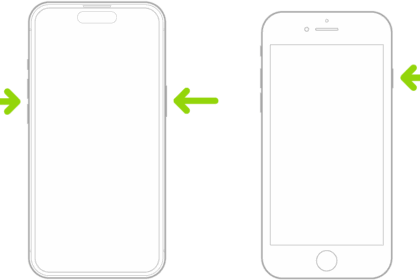
CarPlay depends on Siri to work, so you must make sure Siri is enabled on your iPhone. To do this, press and hold the Side button (the same one you use to lock or wake your device) until you see the Siri symbol appear at the bottom of the screen.
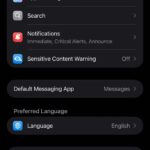
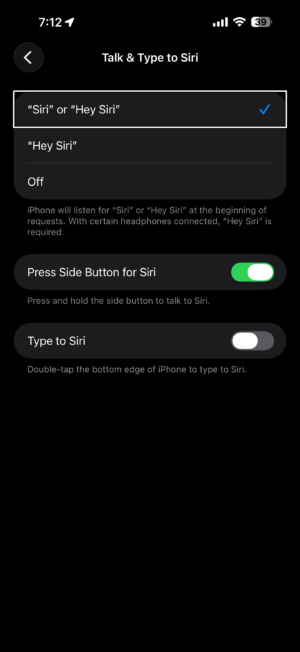
If you’re asked to enable or set up Siri, follow the instructions. Alternatively, choose Settings > Apple Intelligence & Siri > Talk & Type to Siri and tap “Siri” or “Hey Siri.” On top of this, make sure that Siri can be accessed when your device is locked. To do this, enable the “Allow Siri When Locked” toggle.
Check Airplane Mode, Bluetooth and VPNs
This mostly apply if wireless CarPlay is not working on your iPhone, but it’s worth a shot even if wired CarPlay is not working.
On your iPhone, choose Settings and make sure that Airplane Mode is turned off. Still in Settings, tap Wi-Fi and make sure that Wi-Fi is turned on. Tap the CarPlay network, and check that Auto-Join is turned on. Finally, tap Bluetooth and make sure that Bluetooth is also turned on.
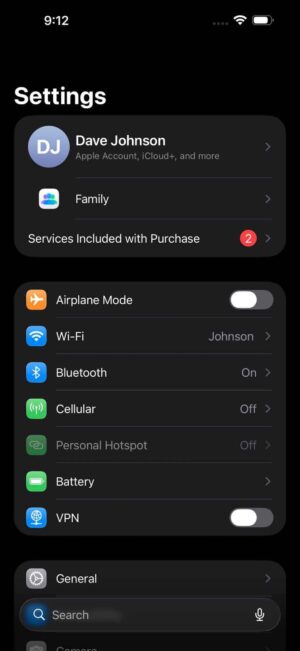
If your iPhone can’t connect to your car with CarPlay and shows an error that says, “connection failed. Please check the bluetooth and wifi settings on your mobile device,” toggle Bluetooth and Wi-Fi off and on.
Lastly, a VPN connection can interfere with CarPlay, so consider disabling your VPN using your VPN provider’s app if you’re having trouble (a VPN can even interfere with wired connections).
If you use Focus modes on your iPhone, check those too. Go to Settings > Focus and look at any active profiles, particularly the Driving Focus. Some Focus settings can block app notifications or interfere with how CarPlay communicates with your iPhone, and a few users on Reddit have reported that turning off a custom Focus profile (not the built-in Driving one, but personal or work profiles that were active) fixed random CarPlay disconnects they couldn’t explain otherwise.
Wired CarPlay? Disconnect and Reconnect
Some iPhone users have reported that CarPlay disappears for no reason. Other users have reported that CarPlay doesn’t initialize. One way to solve these problems is to force your car to start CarPlay again. Simply disconnect the USB cable from your iPhone and reconnect it. It’s also worth trying connecting to a different USB port if you have one.
Not all USB ports in your car are created equal. Some ports are for charging only and won’t carry the data that CarPlay needs to work. Look for a USB port with a smartphone icon, a CarPlay logo, or a white outline around it — those typically support data transfer. Your car’s owner’s manual should tell you which port to use. If you’ve been plugging into the center console and it’s not working, try the one near the dashboard or glove box instead.
The cable itself matters more than most people realize, too. A cheap USB-C cable that charges your phone at home might not support data transfer at all — you need an MFi-certified cable (look for “Made for iPhone” on the packaging) or the original cable that came in the box with your iPhone. This one issue — using a cable that only carries power, not data — has been the root cause in a staggering number of Apple Community and Reddit threads. It’s also worth inspecting both the cable ends and the USB port in your car for lint, dust, or corrosion. A tiny piece of pocket lint jammed into your iPhone’s USB-C port can block the data pins while still allowing enough contact for charging.
Wireless CarPlay? Restart Wi-Fi Connection
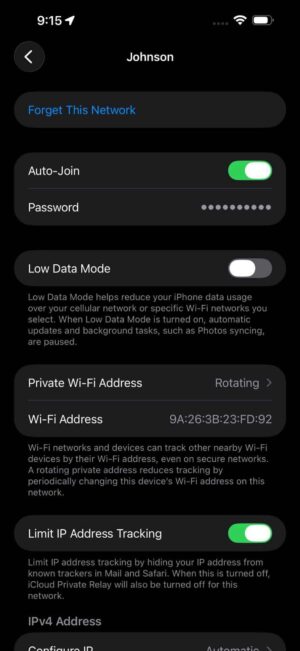
Some iPhone users have said that wireless CarPlay doesn’t work because the iPhone and car can’t maintain a steady Wi-Fi connection. One simple fix for this problem is to forget the CarPlay Wi-Fi network and set it up again.
To do this, go to Settings > Wi-Fi, tap on the information button (the i icon) next to the CarPlay network, and select Forget This Network. Restart your iPhone, and then reconnect to the CarPlay network by following your car manufacturer’s instructions.
Restart Your iPhone and Your Car’s Infotainment System
Sometimes software glitches can cause CarPlay to malfunction. Restarting both your iPhone and your car’s infotainment system could help reset things and get CarPlay working again. Simply turn your iPhone off and back on. Then, restart your car’s stereo system using the manufacturer’s recommended method.

If a standard restart doesn’t do it, try a force restart on your iPhone instead. Press and quickly release the Volume Up button, press and quickly release the Volume Down button, then press and hold the Side button until the Apple logo shows up. This is different from a normal power-off — it clears temporary memory and resets background processes at a deeper level, which can fix CarPlay handshake failures that survive a regular reboot.
Force Quit the CarPlay App
When an app freezes or malfunctions, force closing it and reopening it again often fixes the issue. If a specific CarPlay app (like Maps, Music, or Podcasts) is giving you trouble, you can force quit it and then reopen it.
To close an app on your iPhone, open the app switcher by swiping up from the very bottom of the center of the screen (on iPhones with Face ID) or double-pressing the Home button (on iPhones with Touch ID). Swipe up on the app you want to close. You can now launch the app and try again. Crashed apps can cause all sorts of issues, from wonky behavior to black unresponsive screens.
Update iOS (and Maybe Your Car)
Updating your iPhone can help in a myriad of ways, from adding new features to fixing pesky bugs. If you’re experiencing regular problems with CarPlay on your iPhone, make sure that your phone has been updated to the latest version of iOS for the best results. You can do this under Settings > General > Software Update.
On top of this, many cars now receive over-the-air software updates. These updates add new features and fix old issues, even those associated with CarPlay. If you have a modern vehicle, try updating it using the relevant menu to see if it fixes your CarPlay problems.
If your car doesn’t do over-the-air updates (and many still don’t), you may need to visit your dealership to get the latest infotainment firmware installed. This is especially true for older vehicles where the head unit’s software hasn’t been updated to work properly with newer iPhones and recent versions of iOS. Several users on Apple Community forums have reported that a dealer firmware update — one that took the service department about 15 minutes to apply — completely solved CarPlay issues that no amount of iPhone-side troubleshooting could fix.
Check Wired Accessories Settings
If you’re using wired CarPlay and your iPhone keeps asking you to unlock it before CarPlay will connect, the Wired Accessories setting might be the cause. Go to Settings > Privacy & Security, scroll down, and tap Wired Accessories. If it’s set to Automatically Allow When Unlocked (which is the default), your iPhone blocks all USB data connections — including CarPlay — whenever the phone is locked.

Change the setting to Always Allow if you want CarPlay to connect without unlocking your phone every time. The other options are Always Ask and Ask for New Accessories, but both of those will interrupt CarPlay too. This setting exists to protect against data theft through public USB charging stations, which is a real concern at airports and train stations — but your own car’s USB port is a trusted connection, not some random kiosk. If you regularly drive for a couple of hours without unlocking your iPhone mid-trip, this one setting can be the reason CarPlay drops out or refuses to start, and changing it to Always Allow fixes it immediately.
“Forget” Your Car in CarPlay Settings
If your iPhone is still not working with CarPlay, you should forget your car and CarPlay settings, then set it up from scratch. This worked for me, so give it a try. Follow these steps:
- On your car stereo, go to Settings and delete ALL phones listed in Bluetooth settings.
- On your iPhone, Go to Settings > Bluetooth and forget any car stereos listed under My Devices.
- On your iPhone, go to Settings > General > CarPlay and forget any car listed there.
- Restart your iPhone AND your car stereo by turning them off and back on.
- Set up CarPlay again:
- If your car supports CarPlay using the USB port, plug your iPhone into the USB port of your car or stereo. The USB port might be labeled with a CarPlay icon or a smartphone icon.
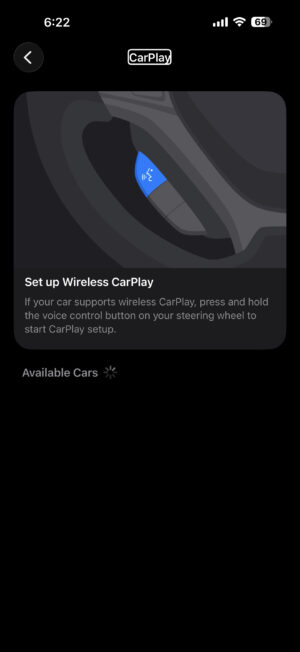
- If your car supports wireless CarPlay, press and hold the voice command button on your steering wheel to set up CarPlay. Or make sure that your car is in wireless or Bluetooth pairing mode. Then on your iPhone, go to Settings > General > CarPlay > Available Cars and choose your car. Check the manual that came with your car for more information.
When you’re deleting old pairings from the car’s Bluetooth settings, make sure you remove every phone that’s listed — not just yours. Cars can store a limited number of paired devices (often around 6 to 8, depending on the model), and having too many old phones sitting in that list can prevent new connections from sticking. If you share the car with a partner or family member, their old device entries could be part of the problem.
If forgetting and re-pairing doesn’t work, one other thing to try before giving up on this step is renaming your iPhone. Go to Settings > General > About and tap the Name field at the top to change it. Some car infotainment systems get confused when a new iPhone has the same name as a previously paired device, and changing the name forces the car to treat it as a completely different phone. It’s a weird fix, but Apple Support has recommended it directly to users, and it works more often than you’d expect.
Reset Network Settings
Go to Settings > General > Transfer or Reset iPhone > Reset > Reset Network Settings. Your iPhone will restart, and once it’s back on, try connecting to CarPlay again.
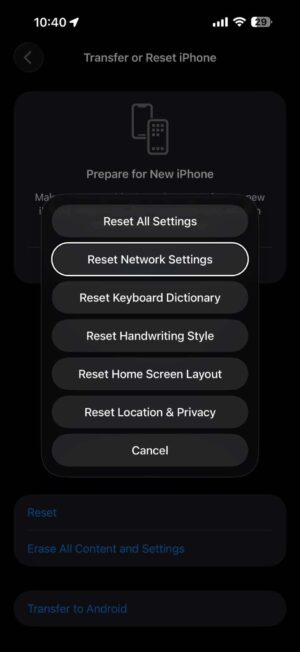
Save this troubleshooting step for later in the process, because when you reset your network settings, all saved Wi-Fi passwords are erased along with your Bluetooth pairings, VPN configurations, and cellular settings. You’ll need to re-enter Wi-Fi passwords for every network you use — home, work, coffee shops, all of them. It’s a bit of a pain to set everything back up, but this step clears out corrupted network profiles and broken Bluetooth handshake data that can silently prevent CarPlay from connecting. For wireless CarPlay problems in particular, this is one of the most effective fixes you can try. If you’ve worked through everything else in this article and CarPlay still won’t cooperate, resetting network settings is the step that finally unsticks things for a lot of people.
Fix CarPlay Issues on Your iPhone With Minimal Fuss
It’s frustrating if your iPhone is not working with Apple CarPlay, as being unable to use your phone responsibly on the road can be very limiting. But with the troubleshooting tips above, you can get rid of the issues preventing your iPhone from working with CarPlay and get back to listening to tunes, navigating your journey, or getting in touch with loved ones safely and conveniently.
If you’ve gone through every step in this article and CarPlay still isn’t working, the problem might not be on your iPhone’s end at all. Contact your car’s manufacturer or visit the dealership first — infotainment firmware updates are free in most cases and fix the majority of persistent CarPlay failures that software troubleshooting on the phone can’t touch. If the dealership confirms your car’s firmware is up to date and the problem continues, then reach out to Apple Support directly or visit an Apple Store. In some rare cases, the issue can be a faulty USB-C port on the iPhone itself, and that’s something only Apple’s diagnostics can confirm.
Frequently Asked Questions About CarPlay Not Working on iPhone
Most CarPlay failures come down to connection or settings problems rather than a hardware defect. A damaged or charge-only USB cable that doesn't support data transfer is one of the most common causes, along with using the wrong USB port in your car — some ports only provide power. CarPlay also won't work if it's been disabled in Screen Time restrictions, if Siri isn't turned on, or if Bluetooth and Wi-Fi are off when you're trying to connect wirelessly. Outdated iOS software or outdated firmware on your car's infotainment system can break compatibility too. A VPN running in the background, Airplane Mode being enabled, or corrupted Bluetooth pairings between your iPhone and your car can all prevent CarPlay from launching.
If your iPhone charges when you plug it into your car but CarPlay doesn't appear, the cable or port is most likely carrying power without transferring data. Many cars have multiple USB ports, and some are designed for charging only — look for a port with a smartphone icon, a CarPlay logo, or a white outline, which typically indicates data support. Cheap third-party cables can have the same problem: they'll charge your phone but lack the data pins CarPlay needs. Try switching to an MFi-certified cable or the one that came with your iPhone. It's also worth checking the Wired Accessories setting under Settings > Privacy & Security, because if it's set to block USB data when your phone is locked, CarPlay won't connect until you unlock your iPhone.
Repeated disconnects usually point to an unstable connection between your iPhone and your car's infotainment system. For wired CarPlay, a frayed or low-quality USB cable is the most frequent cause — pocket lint or debris packed into your iPhone's USB-C port can also interrupt the data connection intermittently. For wireless CarPlay, a weak or congested Wi-Fi link between your iPhone and the car's network tends to be the culprit, and forgetting the CarPlay Wi-Fi network in Settings > Wi-Fi then reconnecting from scratch often stabilizes things. A VPN or a custom Focus mode running on your iPhone can interfere with CarPlay too. If the problem started after an iOS update or has persisted across multiple troubleshooting attempts, checking for a firmware update from your car's manufacturer — sometimes available only through the dealership — is worth doing.
Yes, CarPlay depends on Siri to function, and your iPhone may refuse to launch CarPlay altogether if Siri is disabled. You can confirm Siri is active by pressing and holding the Side button until the Siri symbol appears at the bottom of the screen — if your iPhone asks you to set up Siri instead, follow those prompts. For hands-free use while driving, go to Settings > Apple Intelligence & Siri > Talk & Type to Siri and make sure the "Siri" or "Hey Siri" wake phrase is turned on and that Allow Siri When Locked is enabled so Siri responds even when your iPhone's screen is off.
A black screen on your car's display while CarPlay is connected usually means the system has frozen or a specific app has crashed in the background. Music may still play through your car's speakers even though nothing appears on screen, which confirms CarPlay is technically running but the display output has stalled. Force quitting the problematic app on your iPhone — swipe up from the bottom of the screen to open the app switcher, then swipe the app away — and reopening it often brings the display back. If that doesn't help, restart both your iPhone and your car's infotainment system. For stubborn freezes, a force restart on your iPhone (press and quickly release Volume Up, press and quickly release Volume Down, then hold the Side button until the Apple logo appears) clears deeper software glitches that a normal reboot won't touch.