






- Force quit your VPN app and reopen it, then restart your iPhone
- Make sure your internet connection is stable and your VPN subscription is active
- Toggle Airplane Mode on and off to refresh your network connections
- Try changing your connected region or switching to a different VPN server
- Delete and reinstall the VPN app to clear corrupted files
- Delete and re-create your VPN profile in Settings
- Turn off Connect On Demand if your VPN keeps cycling on and off
- Change the VPN protocol within your VPN app’s settings
- Turn off Private Wi-Fi Address for your current network
- Reset your iPhone’s network settings
- Check whether your ISP or local network is blocking VPN traffic
- Contact your VPN provider’s customer support
Various factors can prevent you from establishing a connection to the VPN server, ranging from unstable internet connection to technical difficulties with the VPN provider. Fortunately, you can try the troubleshooting steps below to get it resolved quickly.
How to fix iPhone not connecting to VPN issue
1. Perform Some Preliminary Checks
To begin troubleshooting, perform the following preliminary checks, which may resolve the problem right away:
- Force quit your VPN app, then reopen it. If your iPhone has a Home button, double-press it to open the app switcher. If your iPhone doesn’t have a Home button, swipe up from the very bottom of the screen to the middle of the screen. Once the app switcher is open, swipe the VPN app up and off the top of the screen. Also, close any other apps that could interfere with the VPN connection.
- Restart your iPhone to fix a minor software problem or connectivity issue with your VPN.
- Ensure that your iPhone is connected to the internet.
- Run a ping test to check the stability of your network connection. If the ping rate is too high or you get errors during the test, your internet likely isn’t stable.
- Keep only one VPN app open at a time.
- Check for a VPN app update.
While you’re checking for app updates, go to Settings > General > Software Update and make sure your iPhone is running the latest version of iOS. Outdated iOS versions can cause compatibility problems with VPN apps, and Apple’s updates frequently include fixes for networking bugs that affect VPN connections. If you’re on an older iPhone that’s stuck on iOS 16 or earlier (which is the case for iPhone 8 and older models), your VPN app may not be fully compatible with that version anymore — check your VPN provider’s website to confirm they still support it.
It’s also worth restarting your Wi-Fi router if you’re connected over Wi-Fi. Unplug it from power, wait about 30 seconds, then plug it back in. Router glitches can interfere with VPN handshakes in ways that look like a VPN problem but aren’t, and a fresh restart clears those out.
One more thing to check before you move on: make sure your VPN account is still active and your subscription hasn’t expired. Open the VPN app and look for any alerts about your account status, or try logging in through the VPN provider’s website. If you can’t log in there either, your password may have changed or your plan may need to be renewed. If you’re using a free VPN, check whether you’ve used up your monthly data allowance — most free plans cap you somewhere between 500 MB and a few gigabytes, and once you hit that limit, the VPN stops connecting entirely.
If the preliminary checks don’t help, proceed to the remaining fixes.
2. Toggle Airplane Mode
Open Control Center by swiping down from the top-right corner of your screen (or swiping up from the bottom if your iPhone has a Home button) and tap the airplane icon to turn Airplane Mode on. Wait about 10 seconds, then tap it again to turn it off.
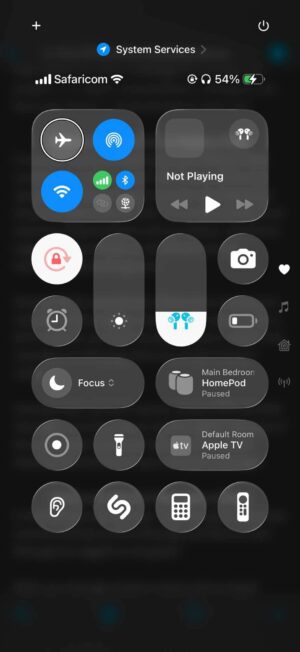
Toggling Airplane Mode kills all wireless radios on your iPhone — Wi-Fi, cellular, Bluetooth — and forces them to reconnect from scratch when you turn it back off. This is different from a restart because it specifically targets the network stack without rebooting the whole device, and it can break your iPhone out of a stuck connection state that’s preventing the VPN tunnel from being established. If your VPN was showing “Connecting…” for a long time without going through, try this before anything more involved.
3. Change Your Connected Region
Changing the region you’re connecting from can fix an issue with your VPN as well. It’s possible your VPN is having issues establishing connections from one region, but not others.
The way to change your connected region varies depending on your VPN provider. A lot of VPN providers allow you to select your location within their iOS app. Try opening the app to see if you can quickly change your connected region.
For example, TunnelBear lets you quickly change your connection region by tapping on an interactive map.
The server you were trying to connect to might be temporarily down for maintenance, or it could be overloaded with too many users at once. This is especially common during peak hours or if your VPN provider has a smaller server network. Try connecting to a server in a completely different country — if that works but your original server doesn’t, the issue is on the server side and there’s nothing wrong with your iPhone.
If your VPN is not connecting to any region, move onto the next step!
4. Delete And Reinstall VPN App
Deleting and reinstalling an app can give it a fresh start if it’s experiencing connectivity issues. One of the app’s files may have become corrupted, which can cause a variety of problems. Press and hold your VPN app’s icon on the Home screen or in the App Library until the menu appears. Tap Remove App > Delete App > Delete to uninstall your VPN app.
Now that the app has been deleted, open the App Store and tap on the Search tab in the lower right-hand corner of the screen. Search for the name of your VPN, then tap the cloud button to the right of the app in the search results.
5. Try Other VPN Apps
If you’re still unable to connect to VPN on your iPhone even after reinstalling the app, there could be a backend or technical issue with your VPN provider. The easiest way to rule out backend issues is to try a different VPN app, preferably one that is more reliable, and connect to one of its servers.
If the connection is successful, then your primary VPN provider may be the culprit. While you wait for your VPN provider to resolve the issue, you can continue using the other app.
However, if you can’t connect to a VPN from the other app as well, there may be an issue with the VPN configuration or your iPhone’s settings. So, apply the remaining fixes.
6. Delete the VPN Profile
A VPN profile enables a device to connect to a private network securely. When you connect to a new VPN for the first time, the app asks for permission to create a new VPN profile. When you grant permission, the app creates a profile, which allows the VPN to monitor or filter your iPhone’s network activity.
The corruption of VPN profiles can also hinder your connection. Therefore, you should delete the existing profile and add it again to rule out this possibility. Here’s how you can do it:
- Open your iPhone’s Settings app.
- Go to General > VPN & Device Management.
- Tap on VPN.
- Locate the VPN profile associated with your primary VPN, which isn’t connecting.
- Tap the Info (i) button next to the relevant VPN profile.
- Tap Delete VPN and then tap Delete in the confirmation popup.
- When you reopen the VPN app, it will ask for permission to recreate the VPN profile. Grant access and see if it fixes the problem.
If deleting and re-creating your primary VPN profile doesn’t resolve the issue, delete all other VPN profiles you see in the VPN settings menu other than the one you just created. This may resolve the problem.
If you recently upgraded to a new iPhone and restored from a backup, old VPN profiles from your previous device can carry over and cause problems — even if the VPN app itself wasn’t transferred. Go to Settings > General > VPN & Device Management > VPN and delete any profiles you don’t recognize. This has been a common issue for people setting up a new iPhone, and removing those leftover configurations can restore your connection immediately.
7. Disable Connect On Demand
Go to Settings > General > VPN & Device Management > VPN, tap the info button (i) next to your VPN profile, and check whether Connect On Demand is toggled on. If it is, turn it off.
Connect On Demand tells your iPhone to automatically establish a VPN connection whenever it detects certain network conditions, and it sounds convenient in theory. In practice, though, it can create a loop where the VPN keeps trying to connect, failing, disconnecting, and trying again — which is that maddening “VPN cycling on and off” behavior you’ll see in the status bar. Some VPN apps also have their own version of this setting (it might be called “Auto-Connect” or “Always-On VPN” inside the app), so check the app’s settings too. Turning off these automatic reconnection features lets you connect manually and gives you a much clearer picture of whether the VPN can actually establish a stable tunnel.
8. Change the VPN Protocol
A VPN protocol consists of rules that determine the encryption used for data and the way information travels between your iPhone and a VPN server. Almost all VPN providers offer multiple VPN protocols and are configured to automatically connect to the most appropriate one based on the use case. The default auto mode is generally the best, but it sometimes malfunctions and causes connection problems. If you’ve also been using the default auto settings, manually switch between available protocols. Depending on your VPN provider, you may need to dig into the app’s settings to change the protocol.
Common protocols you’ll see include WireGuard, IKEv2, and OpenVPN. WireGuard tends to be the fastest, IKEv2 is good at reconnecting quickly when you switch between Wi-Fi and cellular, and OpenVPN is the most widely compatible but can be slower. If one protocol won’t connect on your current network (which happens a lot on public Wi-Fi at hotels, airports, and offices where certain protocols are blocked), try a different one — your VPN may connect on IKEv2 even though WireGuard was being blocked.
If manually changing the protocol doesn’t resolve the issue, revert the change and switch to auto again.
9. Turn Off Private Wi-Fi Address
Go to Settings > Wi-Fi and tap the info button (i) next to the name of the Wi-Fi network you’re connected to. Tap Private Wi-Fi Address and select Off.
Your iPhone rotates its Wi-Fi MAC address periodically for privacy, which is a good feature in most situations. But some routers and network configurations don’t handle the rotating address well, and the VPN handshake can fail when the address changes mid-connection. Turning this off pins your iPhone to a single MAC address on that network. It’s a small privacy trade-off on one network, but it can fix VPN issues that nothing else seems to touch. If this solves the problem, you can leave it off for your home network and keep it on for networks you don’t trust.
10. Reset Your iPhone’s Network Settings
Open Settings and tap General > Transfer or Reset iPhone > Reset > Reset Network Settings. Enter your iPhone passcode, then tap Reset Network Settings to confirm the reset. Your iPhone will shut down, reset, then turn on again. Reconnect to the VPN again to see if you can connect successfully this time.
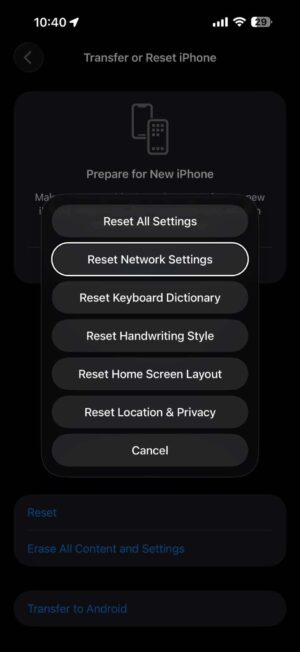
Reset Network Settings erases all VPN, Wi-Fi, Cellular, and APN settings on your iPhone and restores them to factory defaults. You’ll have to reconfigure your VPN once after the reset is complete. It’s also a good idea to write down your Wi-Fi passwords before performing this reset, as you’ll have to reenter them.
11. Ensure Your ISP Isn’t Blocking Your Connection
Although it rarely happens, restrictions imposed by your ISP can also prevent your iPhone from connecting to the VPN. If resetting the network settings does not work, you need to rule out this possibility. To do that, connect to your cellular network or a different Wi-Fi network to see if changing the internet provider fixes the issue.
If you find that your ISP is the culprit, you may need to try a different VPN app to see if that’s blocked as well. You can also contact your ISP directly to have them look into the issue or switch to a different network provider that doesn’t block VPNs altogether.
This can also happen on Wi-Fi networks at schools, offices, libraries, and hotels, where the network administrator may have specifically blocked VPN traffic. If your VPN connects fine on cellular data but won’t connect on a particular Wi-Fi network, that network is likely the problem — and there may not be anything you can do about it except use a different connection.
12. Contact Your VPN Provider
If you still can’t connect to VPN on your iPhone, it’s time to contact customer support. There may be an issue with your account only a customer support representative can resolve. Go to Google and search the name of your VPN provider and “customer support” to find their contact information.
Before you reach out, make a note of what you’ve already tried — which troubleshooting steps you went through, what iOS version you’re running (you can find this in Settings > General > About), and your iPhone model. Having that information ready saves time and helps the support team skip the basics and get to the real issue faster.
Get Your VPN Up and Running Again
Having trouble connecting to a VPN can be frustrating. Hopefully, you now understand why your iPhone fails to connect to a remote VPN server and how you can fix it using the troubleshooting steps above. Leave a comment down below if you have any other questions about virtual private networks.
If you’ve worked through every step here and the VPN still won’t connect, there’s a chance you’re dealing with a deeper iOS issue rather than a VPN-specific one. You could try backing up your iPhone and performing a full factory reset through Settings > General > Transfer or Reset iPhone > Erase All Content and Settings, then setting it up as new (without restoring a backup) to test the VPN on a clean install. If the VPN works on a fresh setup, the problem was buried somewhere in your settings or configuration files. If it still doesn’t work, reach out to Apple Support directly — they can run diagnostics and check whether there’s a hardware-level networking issue with your iPhone.
Frequently Asked Questions About iPhone Not Connecting to VPN
Several things can prevent your iPhone from establishing a VPN connection. An unstable or weak internet connection is one of the most common causes, since the VPN needs a working network to reach the server in the first place. Your VPN subscription may have expired or hit its data cap, especially if you're on a free plan. The VPN server you're trying to connect to could be down for maintenance or overloaded with too many users. A corrupted VPN profile or outdated VPN app can also block the connection, as can an older version of iOS that's no longer fully compatible with the app. In some cases, your Wi-Fi network or ISP may be actively blocking VPN traffic.
That cycling behavior — where the VPN connects, drops, and tries again in a loop — is often caused by Connect On Demand. This feature tells your iPhone to automatically establish a VPN connection under certain network conditions, but it can create a reconnection loop when the tunnel fails to stay up. Check for it in Settings > General > VPN & Device Management > VPN by tapping the info button next to your VPN profile. Your VPN app may also have its own version of this setting, sometimes labeled Auto-Connect or Always-On VPN, so look in the app's settings too. Turning off automatic reconnection lets you connect manually and gives you a clearer picture of whether the VPN can hold a stable tunnel.
If your VPN connects fine over cellular but fails on a specific Wi-Fi network, that network is likely blocking VPN traffic. This is common at schools, offices, hotels, and libraries where the network administrator has restricted VPN connections. Your iPhone's Private Wi-Fi Address feature can also interfere — it periodically rotates your MAC address for privacy, and some routers don't handle the rotation well during the VPN handshake. You can turn it off for that network in Settings > Wi-Fi by tapping the info button next to the network name. If the network itself is blocking traffic, switching to a different VPN protocol within your VPN app may help, since some protocols are harder for networks to detect and block than others.
Yes, iOS updates can break VPN connections. A new iOS version sometimes introduces compatibility issues with VPN apps that haven't been updated to match, and Apple's updates occasionally change networking behavior in ways that affect how VPN tunnels are established. If your VPN stopped working right after an update, check the App Store for a VPN app update first. You should also go to Settings > General > Software Update to make sure you're running the latest iOS version, since follow-up releases often patch networking bugs. If you're on an older iPhone that's stuck on an earlier version of iOS, your VPN app may no longer support that version — check your VPN provider's website to confirm.
When you restore a new iPhone from a backup, old VPN profiles from your previous device can carry over — even if the VPN app itself wasn't transferred. These leftover profiles conflict with the fresh VPN configuration and can prevent connection entirely. Go to Settings > General > VPN & Device Management > VPN and delete any profiles you don't recognize or that belong to VPN apps you no longer use. After cleaning those out, reopen your VPN app and let it recreate a new profile from scratch. This has been a common fix for people who upgrade iPhones and find their VPN won't connect on the new device.