





- If you can’t send messages on your iPhone, first make sure your device has service, as the issue may be with the Wi-Fi or cellular network, not your device itself.
- Check in your iPhone’s Settings app that various messaging options are turned on so that your phone can dispatch texts if iMessage fails.
- If your Messages settings look fine, try toggling iMessage off and back on to force your iPhone to re-register with Apple’s servers.
- Turning your iPhone off and back on again can usually refresh the software and restore better signal connections, enabling your messages to send once again.
- Check that your date and time are set to automatic, and update your carrier settings — both of these can silently prevent messages from going through.
There are few sadder phrases than those two little red words your iPhone displays when a message fails to send: “Not Delivered.” Those words, along with that exclamation point in a circle, mean your charming photo or witty comment didn’t go through.
Fortunately, as in life, with the iPhone: the simplest answer is usually the correct one. If your iPhone is not sending messages, first make sure you have a connection to either a Wi-Fi or cellular network, and make sure your phone is not set to Airplane Mode.
How to troubleshoot your iPhone if it isn’t sending messages
Try these fixes to get your iPhone messages sending smoothly again.
But, first, of course, try just tapping that red exclamation point beside your failed message and then tap “Try Again.”
Check your network connection
If your iPhone is not sending messages, first make sure your phone has service, as the issue may be with the Wi-Fi or cellular network, not your device itself. SMS and MMS messages send in green iPhone text bubbles, while iMessages send in blue iPhone text bubbles. To send a message as iMessage, RCS, or MMS, you need a cellular data or Wi-Fi connection. To send an SMS message, you need cellular network connection. Be sure you are sending the right type of message.
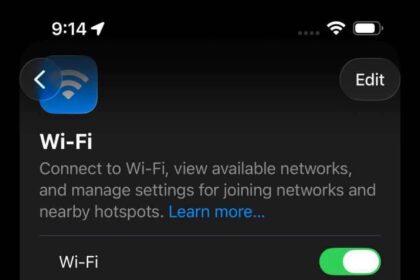
Sometimes bad weather, internet hackers, or a rural location can affect your service connection. One simple way to check if your cell signal is bad is by looking at the number of network bars in the top-right of your iPhone’s status bar, next to the battery icon. Less filled bars mean poor connection. If you see “Searching,” “No Service,” or “SOS,” that means you don’t have a signal.
Try moving to an area with better reception if it’s weak or nonexistent. If you’re in an area that usually has a good signal, contact your mobile network operator.
Before you start changing any settings, check Apple’s System Status page at apple.com/support/systemstatus to make sure iMessage itself isn’t down. If you see anything other than a green dot next to iMessage on that page, the problem is on Apple’s end and there’s nothing you can fix on your device — you’ll just have to wait it out.
Make sure you are not in Airplane Mode
If you can’t send any message on your iPhone, make sure airplane mode is turned off. You can do this by opening your iPhone’s Control Center and tapping the Airplane toggle in the top left. This symbol is grayed out whenever Airplane Mode is off. As a bonus, sometimes toggling Airplane Mode on and off can clear up temporary signal hiccups, too.
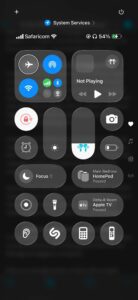
Airplane Mode prevents your iPhone from sending and receiving cellular signals. Unless you’re connected to a Wi-Fi network, you won’t be able to send or receive text messages via iMessage when you enable Airplane mode.
And even then, you can’t send or receive SMS and MMS messages since they rely on cellular signals. Because of this, you should make sure that you’ve turned off Airplane Mode before trying to send text messages.
Check your iPhone’s Messages settings
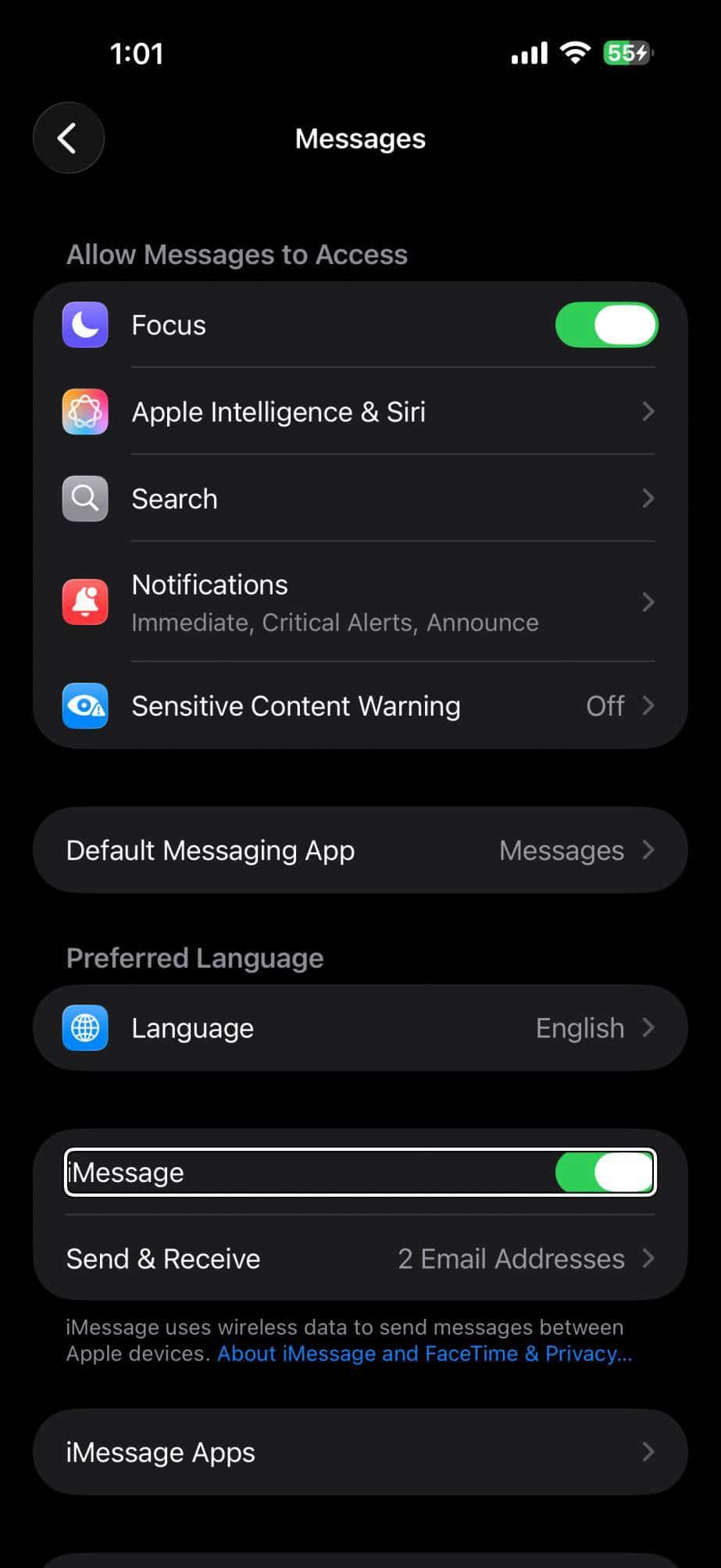
In the Settings app, tap Apps. Tap Messages, then make sure the switches next to iMessage is toggled on (to green). Next, scroll down and make sure Retry as Text Message is also toggled on.
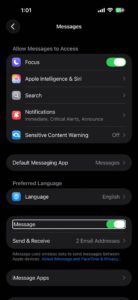
When you message another contact with an Apple device, your iPhone sends it via iMessage by default.
Because iMessage texts sometimes fail to send, your iPhone might instead try sending SMS (Short Message Service) messages, even to other iPhone users. However, you need to switch this feature on in Settings for it to work.
Now, if you try to send a message and you see a red exclamation point with an alert that says Not Delivered, tap the red exclamation point, then tap Send as Text Message.
If you don’t see an option to turn on Retry as Text Message on your iPhone, then your carrier might not support this feature.
If your iPhone won’t send picture messages, make sure the switch next to MMS Messaging is turned on (to green).
While you’re in the Messages settings, tap Send & Receive and make sure your phone number has a checkmark next to it under “You can receive iMessages to.” If your phone number isn’t listed or isn’t checked, your iPhone may be trying to send iMessages through an email address instead, and that mismatch can cause messages to fail without any clear reason why.
Toggle iMessage Off and On
If your iPhone can’t send iMessages, go to Settings > Apps > Messages and tap the iMessage toggle to turn it off. After about 30 seconds, turn it back on.
Toggling iMessage off and on forces your iPhone to re-register with Apple’s messaging servers, which can clear out a stuck activation or a connection that went stale after a software update (this happens more often than you’d think, especially after major iOS upgrades). If that alone doesn’t fix the problem, try signing out of your Apple account— tap Send & Receive, tap your Apple account at the bottom, and choose Sign Out. Give it a few seconds. Then sign back in and send a test message to see if things are working.
Make sure your Mobile Plan is active
If your iPhone won’t send text messages, you should check whether you currently have an active mobile service plan. If you don’t have one, you won’t be able to send texts. If you’re not sure how to do this, contact your carrier.
While the vast majority of phone plans offer standard unlimited texting, you might have exceeded your monthly limit of text messages if you have a limited plan.
In either case, you should contact your network provider to ensure there are no issues with your account services.
Make sure you are texting the correct phone number
Sending text messages to inactive or unused numbers is a recipe for failure and frustration. Make sure that you entered the correct phone number. If you entered the phone number wrong or the intended recipient now has a new phone number, you may be prevented from sending the text. So take your time when entering phone numbers.
If you continue to have trouble, contact your intended recipient by other means to confirm the phone number.
This last point is important. Sometimes, your contacts may change their phone numbers, or their mobile operator may disconnect them. The issue may be with someone else’s phone and not yours.
Restart the Messages app
If your iPhone still can’t send text messages, try closing the Messages app and opening it again. Swipe up from the bottom of the screen to open the app switcher. Find the Messages app and swipe up on it. Reopen the Messages app and check if you can send messages again. Sometimes applications get lost or stuck trying to perform a certain action—like sending a text. Often, refreshing the app can clear out the action, allowing the app to once again function properly.
If one specific conversation keeps failing, try deleting that thread and starting a brand new message to the same contact. A conversation can get corrupted when a message has been stuck trying to send for a long time, and deleting it gives the Messages app a clean slate.
Restart your iPhone
To restart your iPhone, hold down the power button on the right side and one of the volume buttons on the left side. When the power slider appears, drag it to power down. When you turn it back on, it may well be able to send messages again.
Turning an iPhone on and off clears temporary memory, so it can be a good way of removing any issues affecting how your iPhone works.
Check Your Date and Time Settings
Go to Settings > General > Date & Time and make sure Set Automatically is turned on.
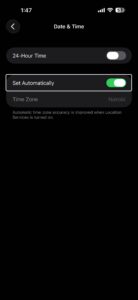
If your iPhone’s date and time are even slightly off — and it doesn’t take much, even a few minutes can do it — iMessage can fail to connect to Apple’s servers because the security certificates behind the connection rely on accurate timestamps. It sounds strange, but it’s true. After a factory restore, a long international trip, or even a dead battery that sat uncharged for weeks, this setting can get thrown off without you realizing it. If Set Automatically was already turned on and the time still looks wrong, try toggling it off, waiting about ten seconds, and then turning it back on to force your iPhone to pull a fresh timestamp from the network.
Update iOS
Make sure your iPhone is connected to a Wi-Fi network, then go to Settings > General > Software Update. If a pending update is available, you’ll see an Update Now button — tap it to download and install the latest version on your iPhone.
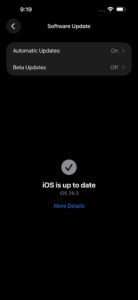
You should always keep your iPhone updated with the latest version of iOS. New updates for iOS can iron out software issues and bugs. So if you still can’t send messages on your iPhone, update your device to the latest version of iOS.
If your iPhone says, “iOS is up to date,” you have the latest version installed and don’t need to do anything else.
Update Your Carrier Settings
Make sure your iPhone is connected to Wi-Fi or cellular data then go to Settings > General > About and wait about 15 seconds. If a carrier settings update is available, a pop-up will appear asking you to install it — tap Update.
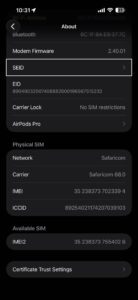
Apple and your wireless carrier release these small updates periodically to improve how your iPhone connects to the cellular network, and an outdated carrier bundle can quietly break things like SMS delivery, MMS attachments, or even 5G connectivity. Easy to miss. If no pop-up appears after sitting on the About screen for about 15 seconds (most people have never even opened this screen), your carrier settings are already current and you can move on.
Reset your network settings
Go to Settings > General > Transfer or Reset iPhone, then tap Reset and select Reset Network Settings. This will erase all of your saved Wi-Fi networks and passwords, so save this step for after you’ve tried everything above.
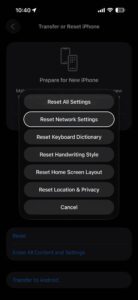
Resetting your network settings is a last-ditch attempt before seeking help from your carrier or Apple, but it might be your last chance for getting those messages out.
Contact your carrier or Apple
If your iPhone still won’t send SMS messages after all this, your last option is to contact your carrier or Apple. First, try checking with your carrier to see if the type of message you’re trying to send, like RCS, MMS, or SMS, is supported. If everything is good on your carrier’s end, it’s likely a hardware issue, and you should contact Apple or an authorized service provider for expert assistance.
When you call your carrier, ask them specifically to do a network reset on their end — this is a different thing from the network settings reset you already did on your iPhone, and it has fixed the problem for a lot of people in Apple Community forums who had tried everything else on their own device. If the carrier says everything looks fine on their side, that points toward a hardware issue with your iPhone’s cellular radio or SIM reader.
Depending on your location, you can book an Apple Store appointment at a Genius Bar. You may have to eventually replace the iPhone, but that should be the last case scenario.
Fix Your iPhone Messaging Issues
Unfortunately, it can take a little bit of time to figure out exactly what the source of your texting issues may be. However, if you’re patient and willing to try a couple of different techniques, you should have no problem getting your iPhone working again.
If you’ve tried every step above and your iPhone still won’t send text messages, have your carrier run a full network reset and then book an appointment at an Apple Store or authorized service provider. A technician can run diagnostics on your iPhone’s hardware — including the antenna and SIM tray — and tell you whether a repair or replacement is needed before you spend any money.
Frequently Asked Questions About iPhone Not Sending Messages
Most of the time, your iPhone won’t send messages because of a connection problem. Airplane Mode being left on is another common culprit, since it cuts off all cellular signals. Beyond connectivity, your iMessage or SMS settings may have been toggled off without you realizing it, your mobile plan may have lapsed or hit its texting limit, or Apple's iMessage servers could be experiencing an outage you can check at apple.com/support/systemstatus. Less obvious causes include an incorrect date and time setting on your iPhone, outdated carrier settings, or a corrupted conversation thread in the Messages app that's silently blocking delivery.
That red exclamation point with "Not Delivered" underneath means your message never left your iPhone or never reached the recipient's device. It usually shows up when your internet connection drops mid-send, when iMessage can't reach Apple's servers, or when you're trying to iMessage someone who no longer uses an Apple device. Tap the red exclamation point and try Try Again first — if the connection was just briefly interrupted, the message will go through on the second attempt. If it still fails, tap the exclamation point again and choose Send as Text Message to route it as an SMS over your cellular connection instead.
Green bubbles mean your message was sent as an SMS or MMS text rather than an iMessage. This happens whenever you're texting someone who doesn't have an Apple device, or when your iPhone can't establish an iMessage connection — typically because you've lost your data or Wi-Fi signal, or because iMessage is turned off in your settings. If your messages to another iPhone user suddenly go green, open Settings > Apps > Messages and confirm that iMessage is toggled on. You'll also want to check that your phone number is selected under Send & Receive, because if only an email address is checked there, iMessage may not route properly through your number.
Yes — iMessages travel over any internet connection, so you can use iMessage over Wi-Fi network even if you have no cellular signal at all. SMS and MMS messages on the other hand rely on your carrier's cellular network and won't send over Wi-Fi alone. If you're somewhere without cell service and need to reach someone who doesn't have an Apple device, iMessage won't help since the fallback is SMS, which requires a cellular connection. Turning on Retry as Text Message in your Messages settings tells your iPhone to attempt SMS automatically when iMessage fails, but that fallback still depends on having a cell signal.
Start by double-checking that you have the right phone number — a single wrong digit or an outdated number is one of the most common reasons messages fail to a specific contact. If the number looks correct, the recipient's phone may be off, disconnected, or they may have switched carriers and gotten a new number, so try reaching them another way to confirm. You can also delete the conversation thread with that contact and start a brand-new message to them, since a thread can get stuck when a message has been failing to send for a while and the Messages app won't clear the error on its own.